
Zentail Integration
Introduction
These instructions will guide you in setting up an integration between your Fulfillment Control Panel account and your Zentail account in order to sync orders and inventory levels between the two accounts.
Step 1: Add Zentail Integration to the Integration Portal
To add a connection between the FCP and Zentail, you will want to sign into your account in our Integration Portal, and navigate to the Integrations tab, where you will click on the “+Add” button in the top right:
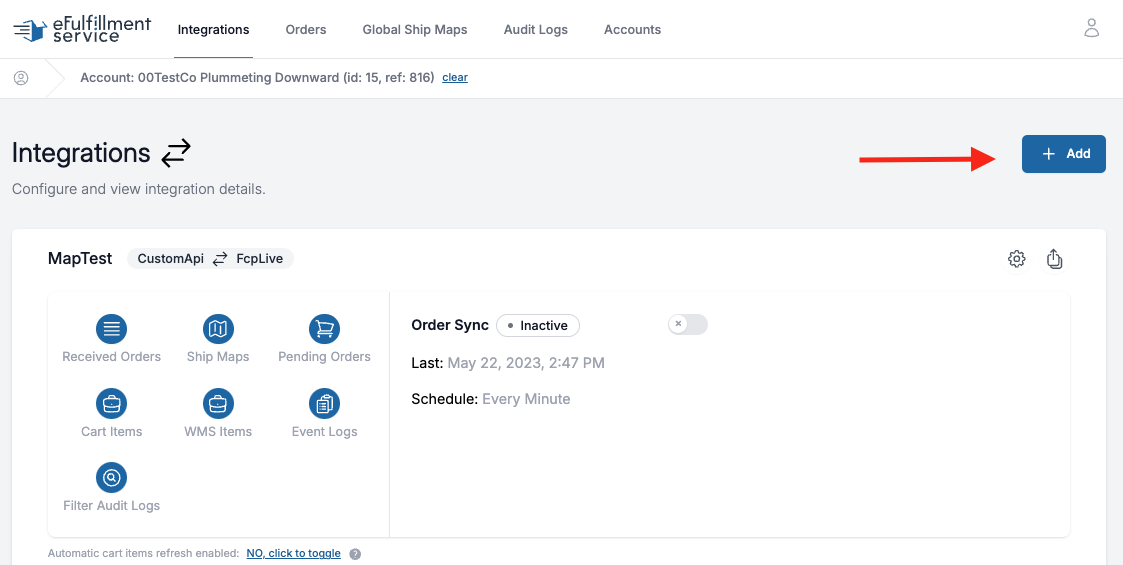
rom the menu of options, you will choose Zentail near the bottom, which will bring up the following form:
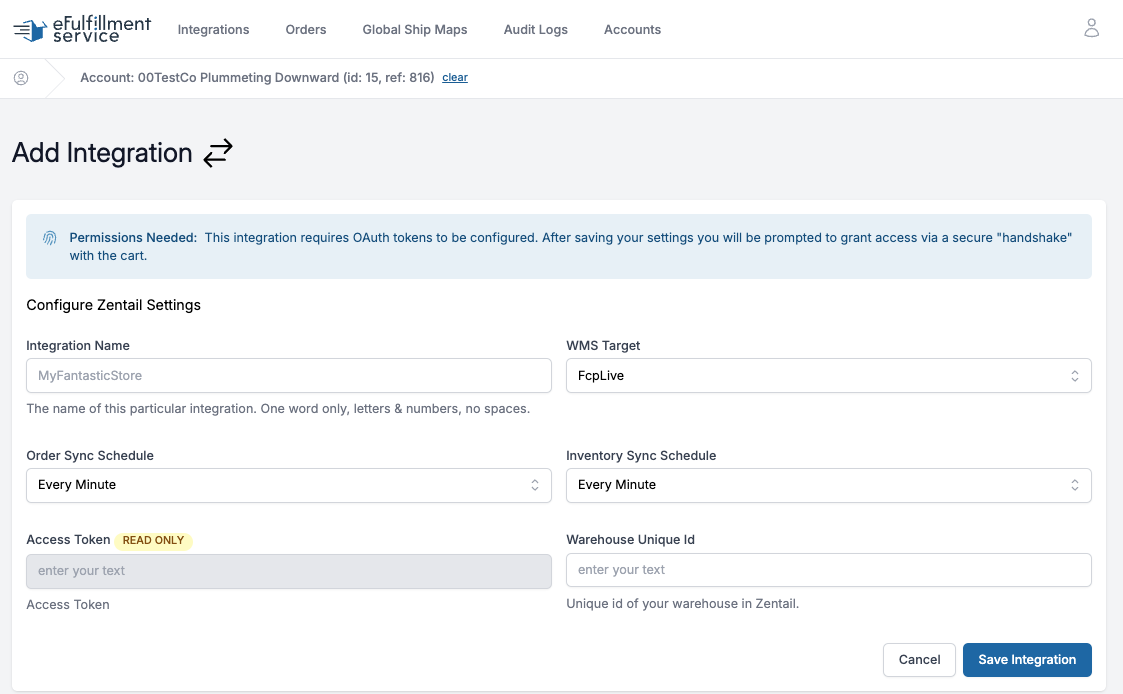
At this point, all you need to do is fill out the Integration Name field with a one word name composed of letters and numbers, but no spaces or special characters. Choose a name that will help remind you of the account this integration refers to. The WMS Target should be prefilled as FcpLive, and you can set the sync schedules later. Once you add the integration name, you can simply click the Save Integration button, and you will be directed to a Zentail login screen in order to authenticate our application with Zentail. The authentication screen should display as below:
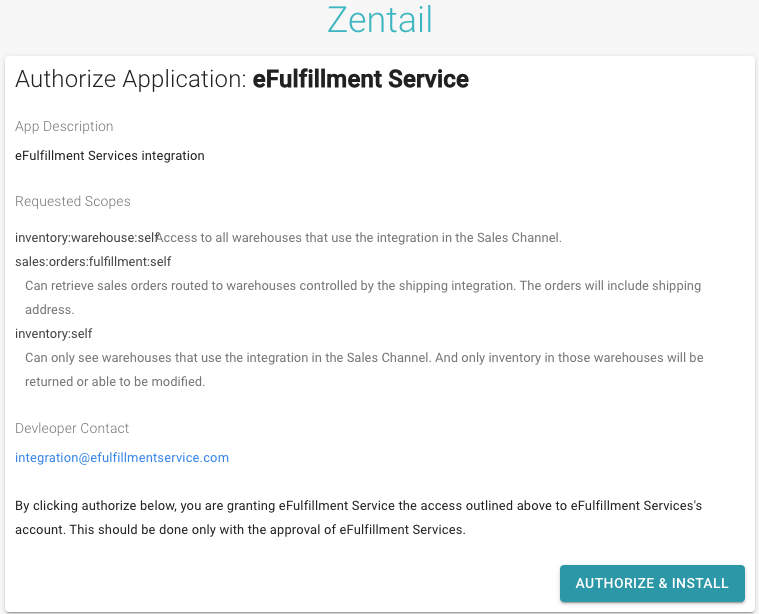
Once you click “Authorize & Install,” you should be directed back to the Integration Portal, and see a success message above your integration settings.
Step 2: Configure Your Zentail Warehouse
In order for the connection to work, you’ll now need to navigate to your Zentail Dashboard, click on Account in the top menu, then Settings. Here you’ll be creating a new warehouse.
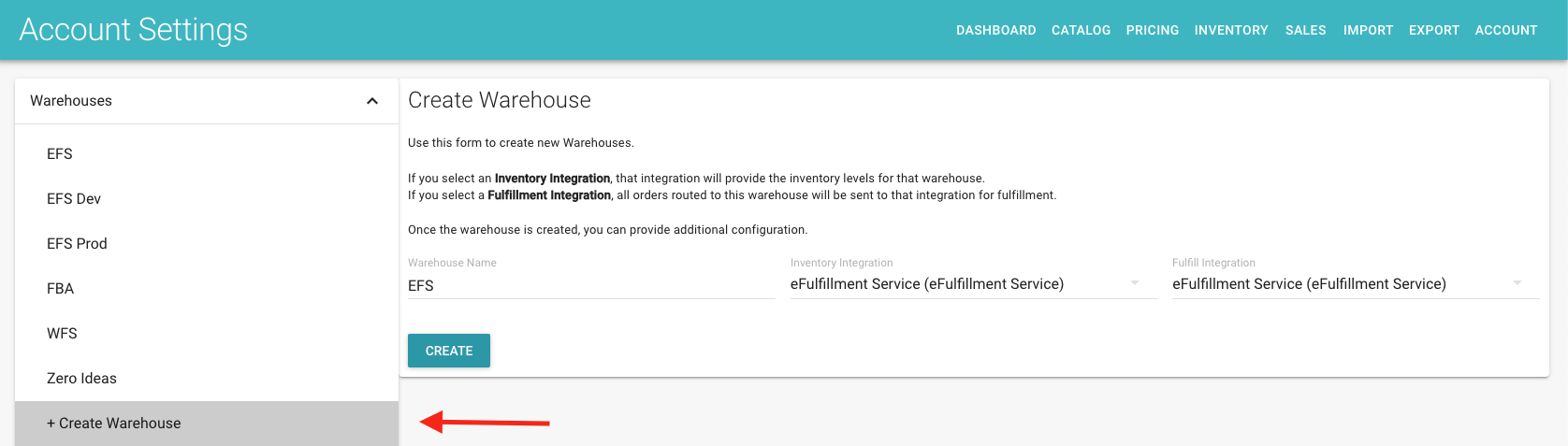
Once you click on “+ Create Warehouse”, you will see the above screen. In the Warehouse Name field, you can put whatever you want for the name, we suggest “EFS.” In the Inventory Integration and Fulfill Integration fields, you will select the integration created during the authorization process, which should be “eFulfillmentService(eFulfillment Service).” It may have a number if you are making a secondary Zentail integration or if you go through the authorization process multiple times. Click create, and then navigate to your new warehouse in the sidebar menu.
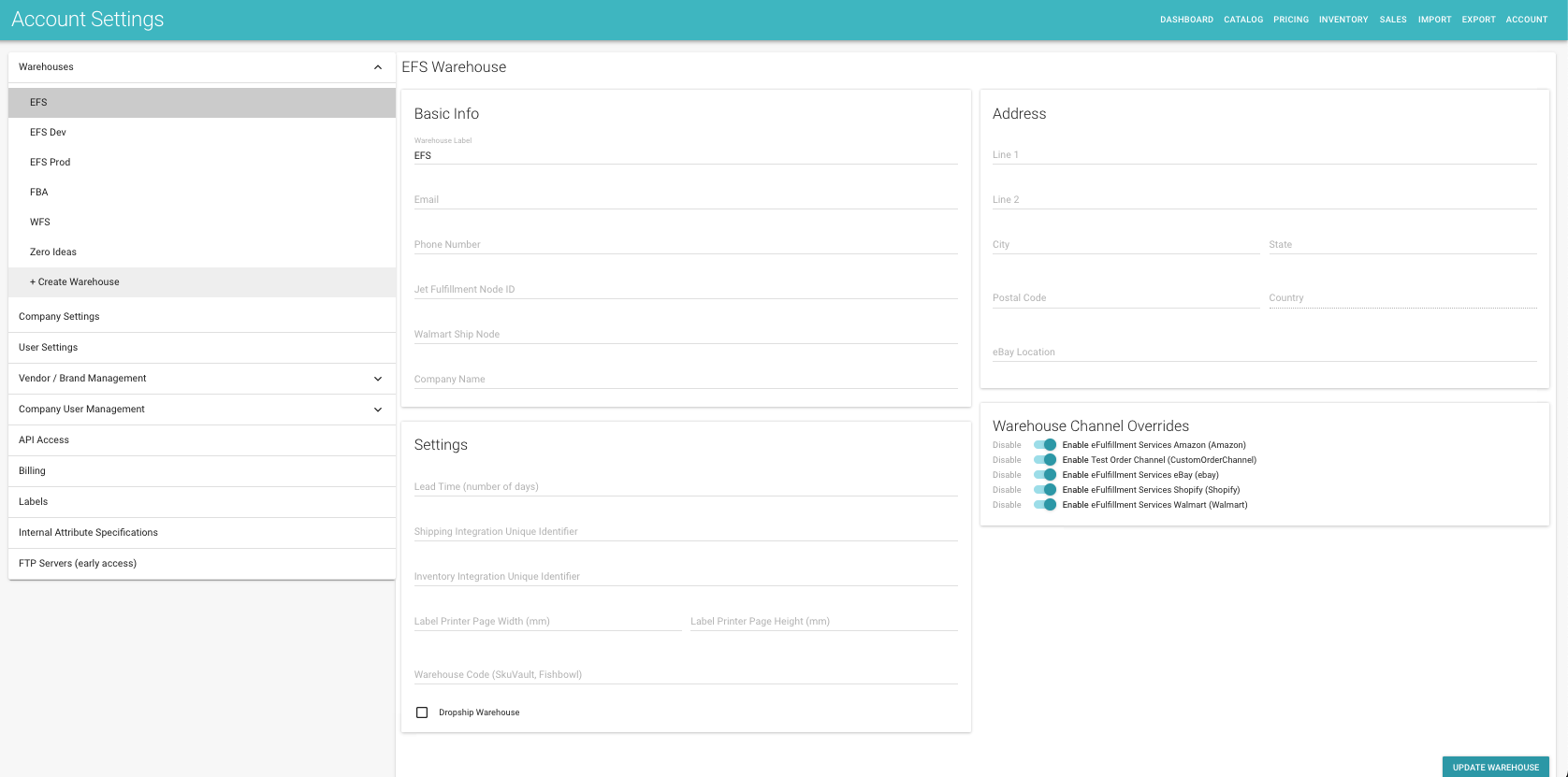
Under settings, there are fields entitled “Shipping Integration Unique Identifier” and “Inventory Integration Unique Identifier.” You can put whatever identifier you would like in these fields, like “EFS1,” but you must use the same identifier in both fields, and they should be unique to this Warehouse. Click “Update Warehouse” in the bottom right, and your warehouse will be configured. No other information on this page is necessary for our integration, but feel free to fill out the other information as a reference. You’ll need the unique identifier for the next step, so remember it or write it down.
Step 3: Completing Setup in the Integration Portal
For the last step, navigate back to the integrations tab in the Integration Portal, scroll down to your new Zentail integration, and click on the gear icon for the integration settings page.
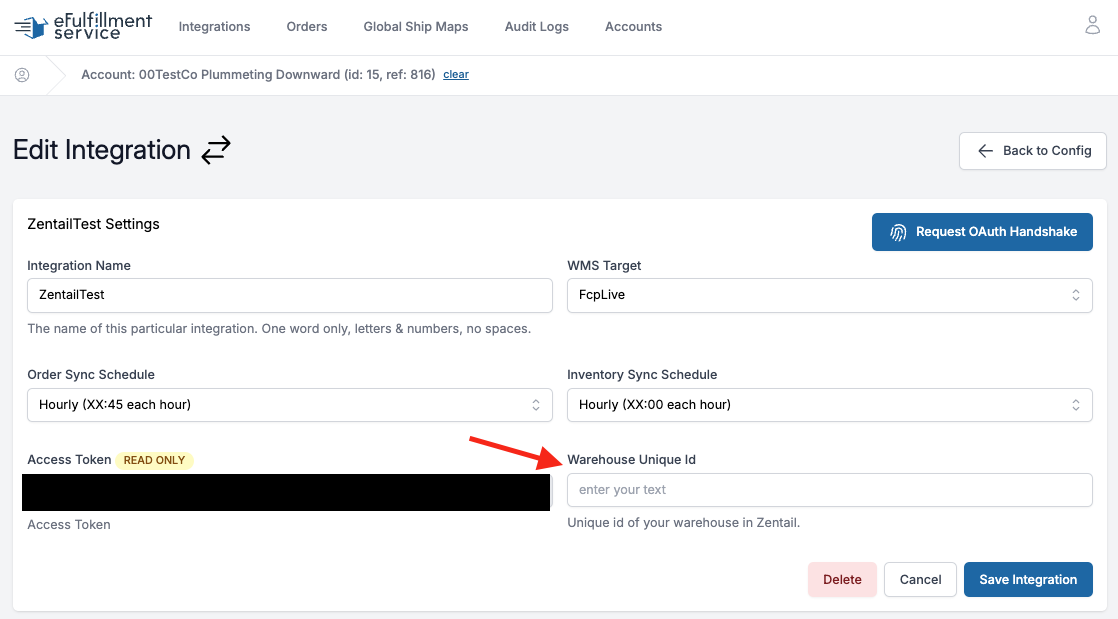
Your access token should have been filled by the OAuth handshake, and all you need to do now is enter the unique identifier you chose in Step 2 in the “Warehouse Unique Id” field, exactly how you wrote it in the warehouse settings on Zentail. After this, make sure your order sync and inventory sync schedules are set where you want them, and click “Save Integration.”
At this point, your integration should be completely configured. To test that the integration is working, make sure you have products in Zentail in the EFS warehouse, then navigate to the cart items section of the integration. Here, you can click on “Refresh Cart Items.” If everything has been set up successfully, your products from the EFS warehouse in Zentail should be pulled into the integration. Then you can simply turn on Order and Inventory syncing from the main Integrations page, and you should be connected. If you encounter any difficulties in this process, don’t hesitate to reach out to your Client Care Representative, and they’ll help you through the process.