
Shipping Setup & Configuration
Purpose
This guide explains how to design a shipping setup that improves customer experience and supports your fulfillment process. It outlines best practices for setting up free shipping, flat-rate tiers, and express options in a way that balances cost, conversion, and profitability.
1. Why Shipping Setup Matters
Your shipping structure directly affects:
- Cart conversion rate
- Average order value (AOV)
- Customer satisfaction
- Profit margins
A clear and flexible setup helps avoid abandoned carts, reduces confusion at checkout, and improves delivery predictability.
2. Recommended Shipping Tier Structure
The most effective setups include three to four tiers that appeal to different buyer needs while maintaining simplicity.
| Shipping Option | Suggested Rate | Purpose |
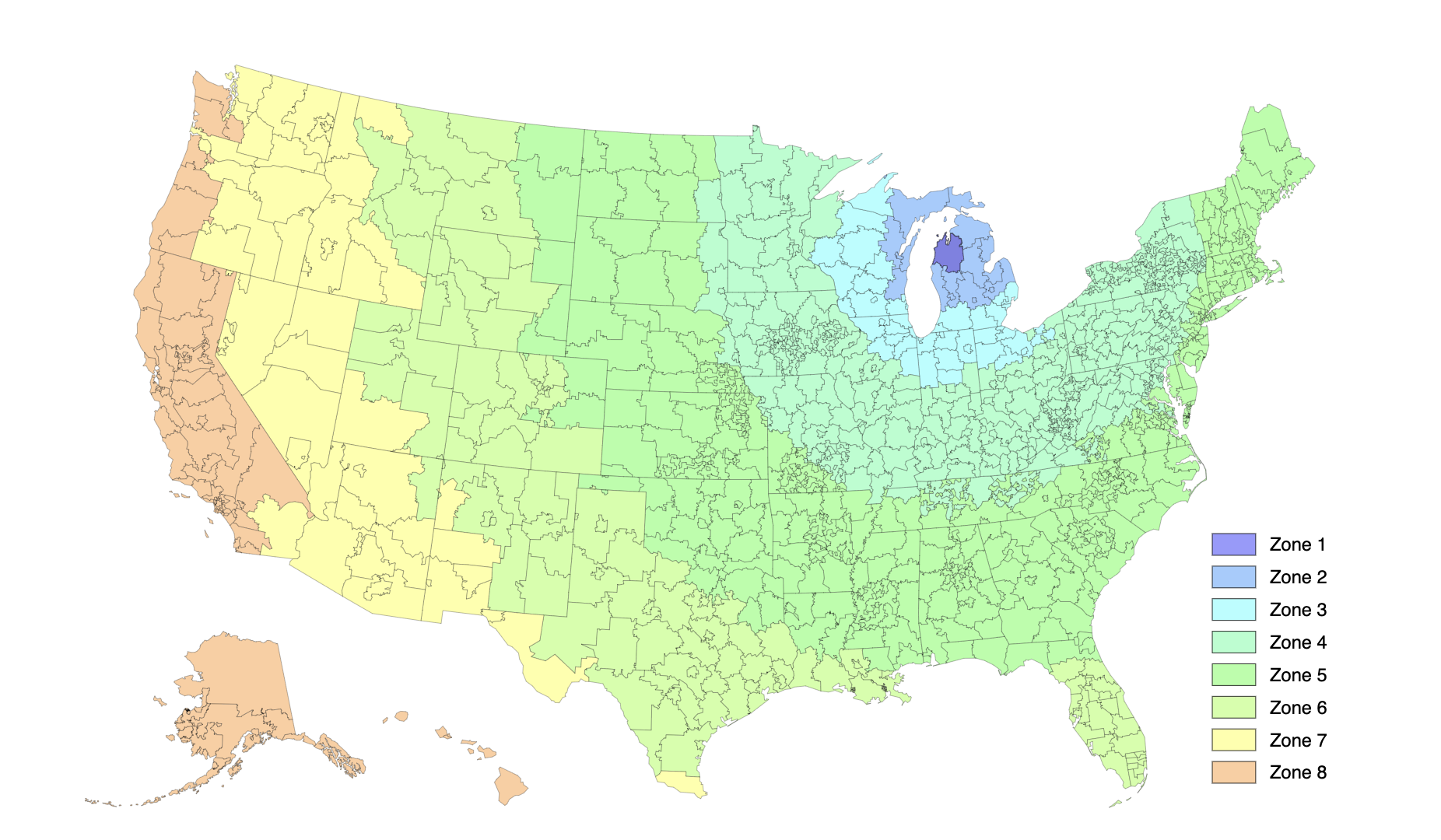
| Free Shipping (≥ $75) | $0 | Encourages higher AOV; use your average Zone 5 rate as the baseline. |
| Ground (Priority Mail) | $9 | Balanced cost and delivery time for most orders. |
| 2-Day (FedEx 2Day) | $17 | Fast delivery with clear premium positioning. |
| Overnight (FedEx Overnight) | $30–$35 | For urgent deliveries with higher margin recovery. |
Tip: Offer Free Shipping as a top-tier incentive rather than the default. Use it strategically to encourage larger carts.
3. Calculating Free Shipping Thresholds
Determine your threshold by comparing your:
- Average Order Value (AOV)
- Average Zone 5 shipping rate
Example:
If your AOV is $65 and your average Zone 5 cost is $8.50, set your free shipping threshold between $75–$100.
This creates a clear incentive for customers to increase cart size without hurting margins.
4. Flat-Rate Shipping Best Practices
Flat-rate pricing simplifies checkout and makes costs predictable.
When to use:
- When product weights and shipping zones are similar.
- When you want to avoid showing variable rates.
Examples:
- $5 for small items under 1 lb.
- $9 for medium orders.
- $15 for heavier or bulk items.
Keep flat-rate tiers simple, with no more than two or three options.
5. Express and Expedited Options
Customers expect speed choices. Add 2-Day and Overnight tiers even if few use them. This communicates professionalism and gives high-value customers flexibility.
Always display expected delivery times (e.g., “Arrives in 2–3 business days”) to set clear expectations and reduce support inquiries.
6. How to Implement in Your Store
If your store allows custom shipping profiles (Shopify, WooCommerce, BigCommerce, etc.), create a rate structure that mirrors your EFS shipping setup.
Recommended steps:
- Log into your ecommerce platform.
- Create zones for domestic and international regions.
- Add rates based on your chosen tiers (Free, Ground, 2-Day, Overnight).
- Name each method clearly so it matches your mappings in the IS2 Portal.
- Test checkout to confirm rates appear correctly for customers.
7. Syncing to EFS
Once your store’s shipping options are configured:
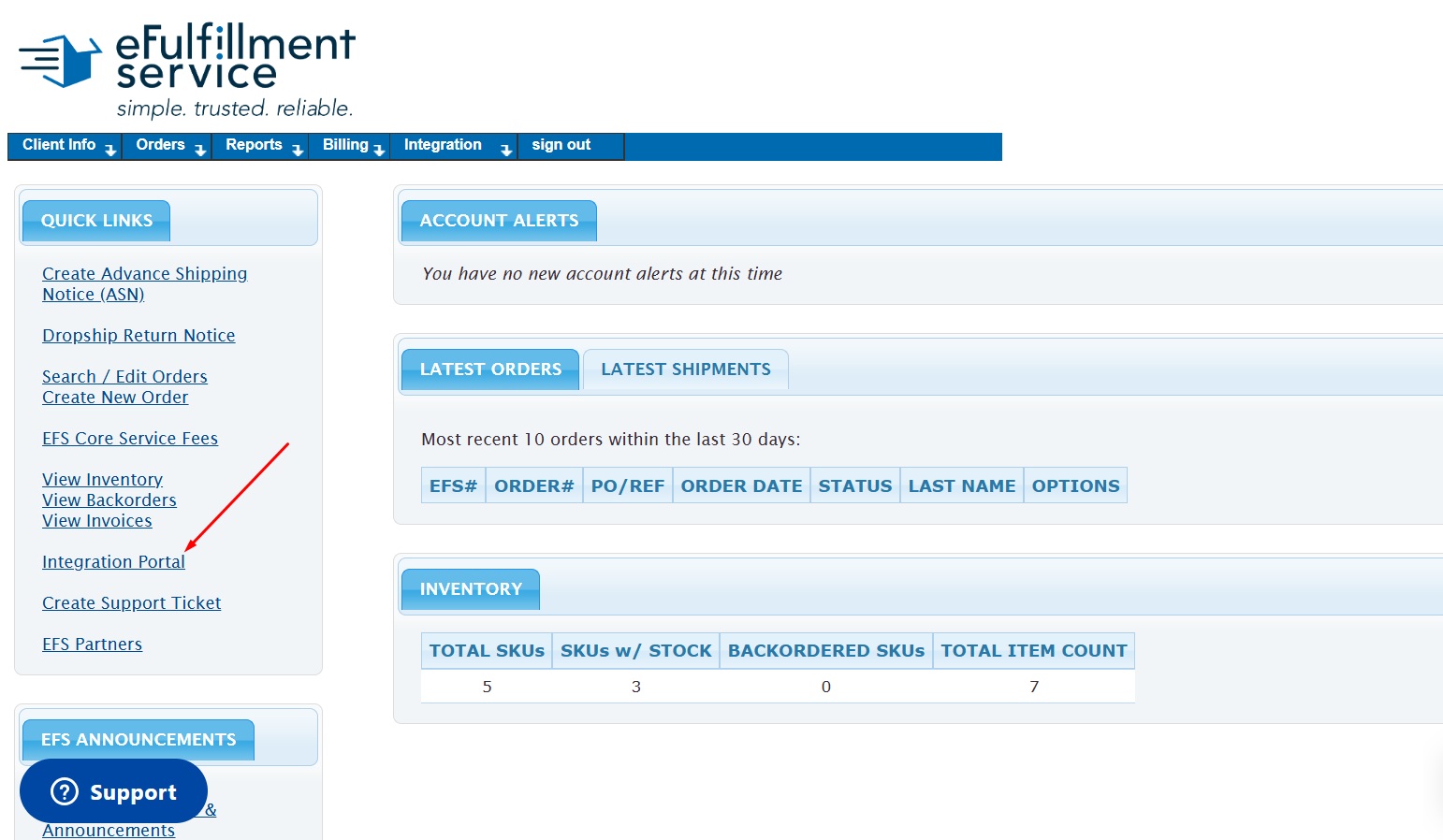
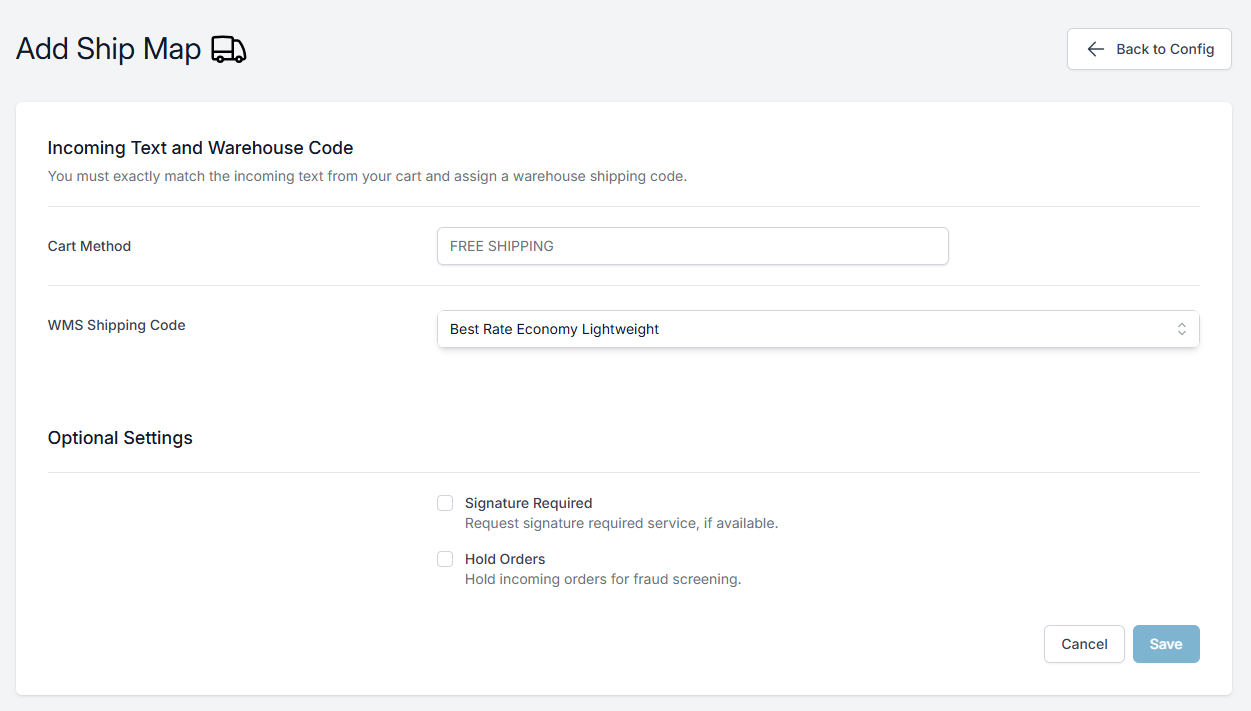
- Go to Quick Links → Integration Portal.
2. Click the Ship Maps section.
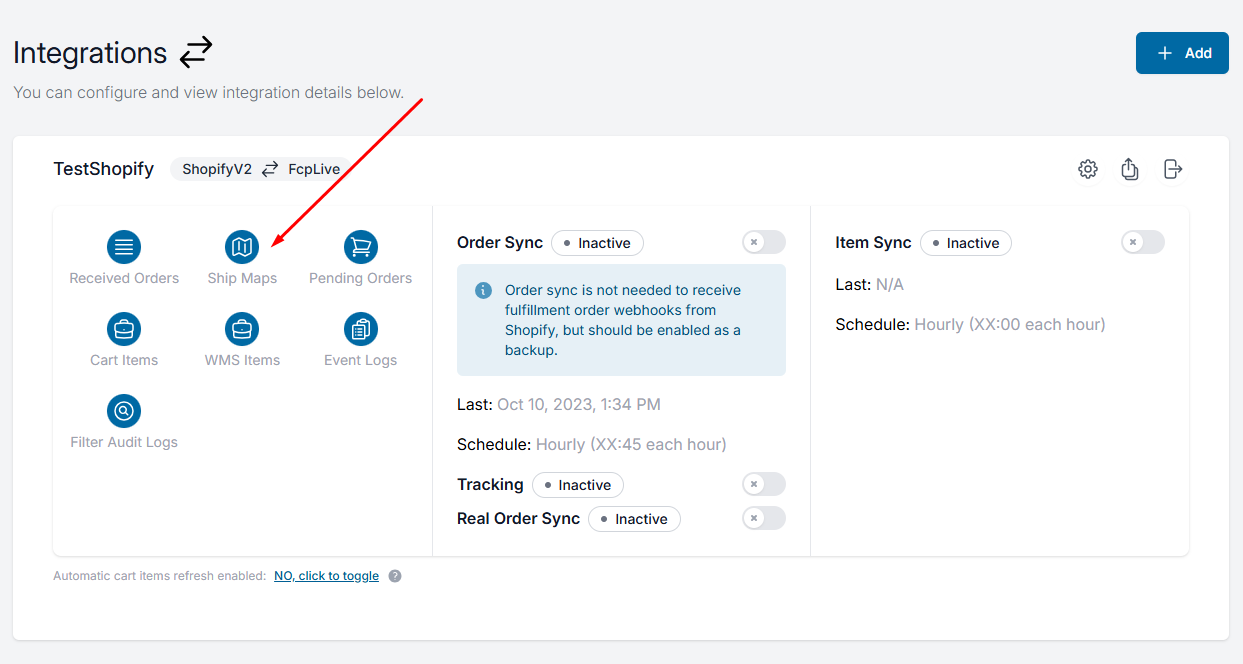
3. Match your store’s shipping names (e.g., “Standard Shipping,” “Free Shipping,” “Express”) to the internal EFS codes:
- Best Rate Economy Lightweight Post
- FedEx 2-Day
- FedEx Overnight
- SaverShip Premium (for heavier packages)
This ensures orders are routed to the correct carrier service automatically.
8. Testing and Reviewing Setup
Before activating your new structure:
- Place a few test orders to confirm rate accuracy.
- Verify that each order imports correctly into the FCP with the right carrier code.
- Adjust thresholds or rates based on order trends and shipping costs.
Revisit your setup every 6–12 months to ensure it still supports your profit goals and current carrier rates.
9. Key Takeaways
- Keep your shipping tiers simple and intentional.
- Use free shipping as a reward, not the default.
- Match store rates to your EFS fulfillment methods.
- Recheck mappings after any changes to your store’s shipping structure.
Next Steps
If you use Shopify, continue to the next guide: Setting Up Shopify Shipping Profiles for EFS Integration.
For all other platforms, move on to Tracking & Status Updates to learn how to monitor and confirm deliveries.