
Shopify Set-Up Guide
Introduction
This guide serves as a resource to help you integrate your Shopify store with our Integration Portal. As always, our Client Care team is available to assist you with any questions you might have regarding this process. If you have an existing account in our Integration Portal because you have integrated shopping carts with us before, you are ready to begin. If you do not have an account in our Integration Portal, please contact your Client Care Representative prior to attempting migration, so that they can set you up with an account and familiarize you with the Integration Portal before you begin.
Step 1: Connecting your Store Through our Shopify App
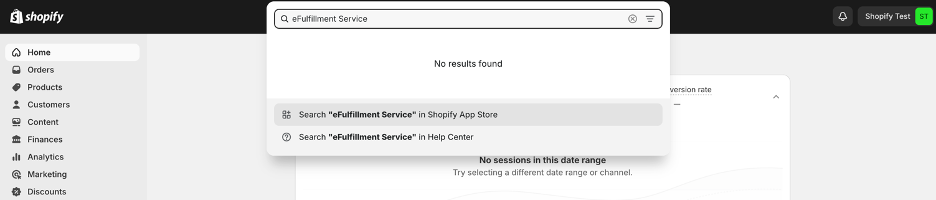
The first thing you’ll want to do to connect your store with our Integration Portal is to find our app in the Shopify App Store. You can do this from your store’s home page by clicking the search bar at the top, typing “eFulfillment Service,” and clicking Search “eFulfillment Service in Shopify App Store.”
You should see our app quickly in the first results, as shown here:
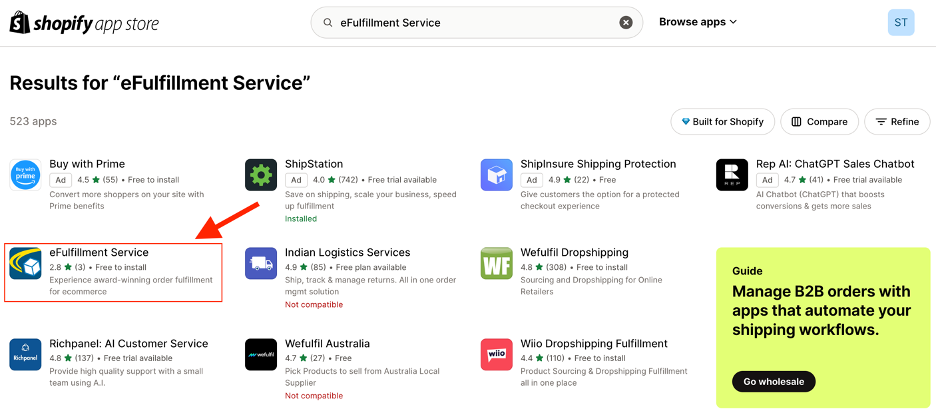
Click on our app to go to the listing page, and then click the “Install” button. This should bring you back to your store, where Shopify will ask you to share permissions with our app:
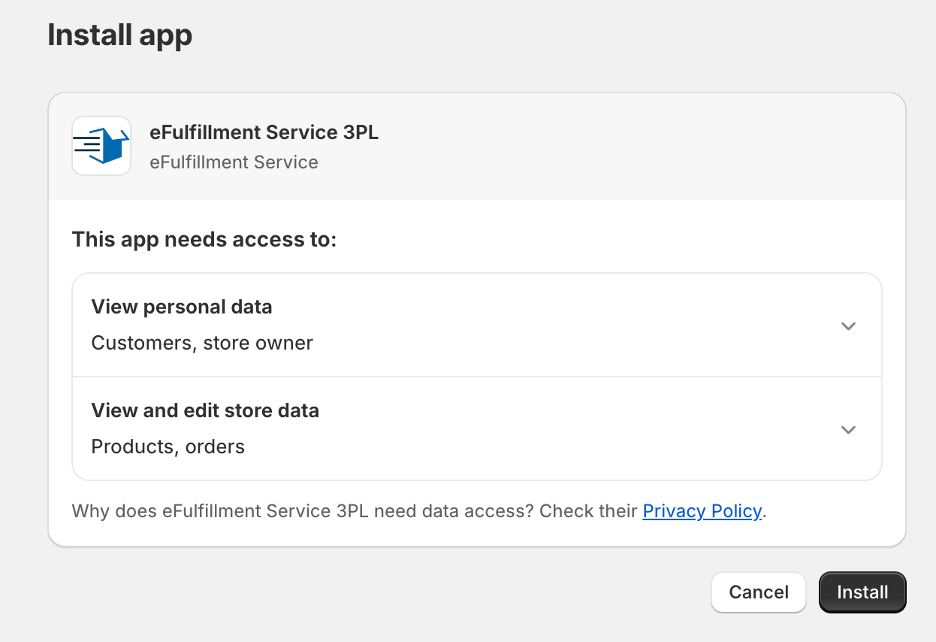
Go ahead and click Install. This will bring you to the login page for the Integration Portal. Login with the username and password for your account. After logging in, you will be brought to the settings page to connect your Shopify Store.
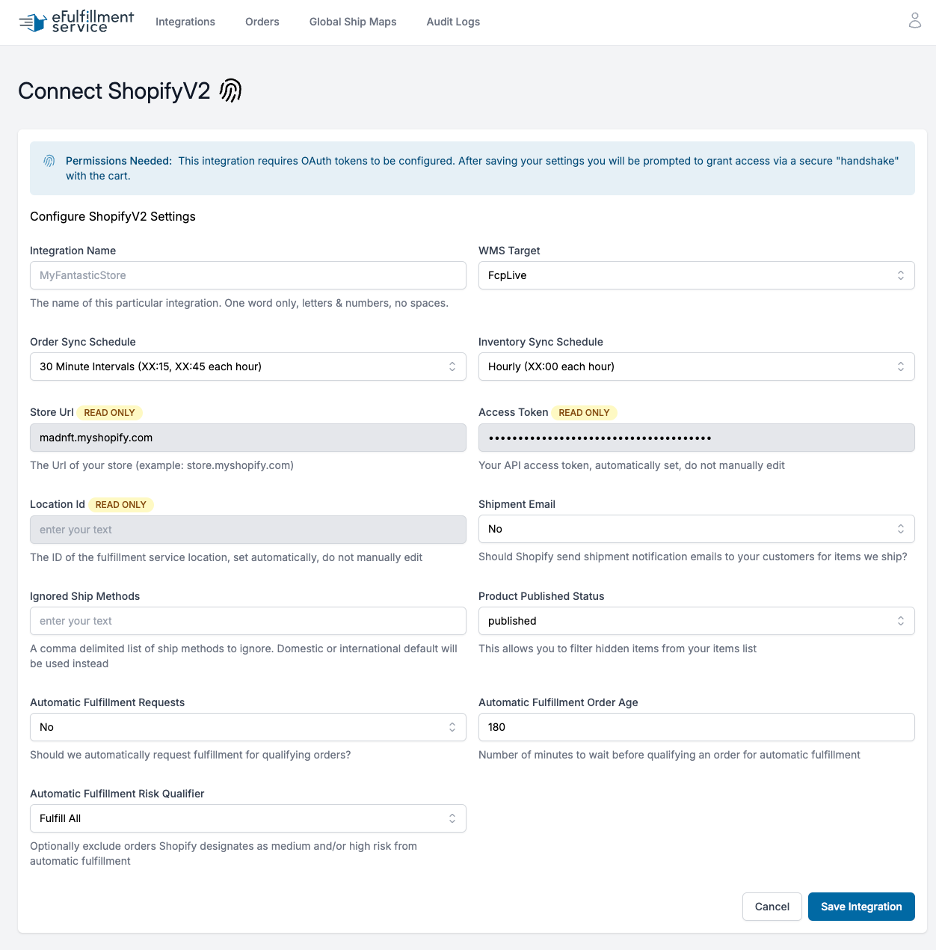
In order to finish connecting, you will need to fill out the following fields:
Integration Name: Pick a name for your integration, one word composed of letters and numbers, no spaces or special characters.
WMS Target: If you only have one WMS connection, this should be prefilled for you, but if you have connections from our integration portal to multiple WMS systems, you will need to select the WMS you wish to integrate with.
Order/Inventory Sync Schedule: While we sync with Shopify using webhooks that pull in your orders in real time, these webhooks do fail, and so we have a backup system to pull fulfilled orders in on a scheduled basis. Please select the schedule on which you wish our system to pull your orders and sync inventory back to your store.
Shipment Email: Select whether or not you want Shopify to send out shipment notification emails to your customers when we ship your product.
Ignored Ship Methods: If you would like us to ignore certain ship methods when they come through the integration, and replace them with Domestic or International Default, list them here, separated by commas.
Product Published Status: Select whether you would like us to sync products in published status, draft status, or both.
Automatic Fulfillment Requests/Order Age/Risk Qualifier: Some clients, due to various concerns with their store setup, are unable to utilize Shopify’s automatic fulfillment setting to fulfill orders. Since orders must have fulfillment requested in order for us to pull them through the integration, this can lead to extra work to manually fulfill each order. To help with this, we have set up a system that will request fulfillment for your orders based on a certain age and risk category. Please discuss with your Client Care Representative whether this would be a good option for you and what you should consider selecting for these options.
Once you have filled in all the pertinent options, click the blue “Save Integration” button at the bottom of the page. You will be returned to the main Integrations page of the Integration Portal, where you should see your new Shopify integration:
Step 2: Moving Your Products to Our App Location
In order for our app to work, we require that you move products to be fulfilled by our warehouse into a location which is connected to the application. You can see this location in the Locations section of your store’s settings:
Note:
Digital products or other non-shippable items should not be assigned to your EFS App location. eFulfillment Service provides physical fulfillment and shipping only; other non-shippable items should be assigned to the appropriate location within your other platforms or sales channels.
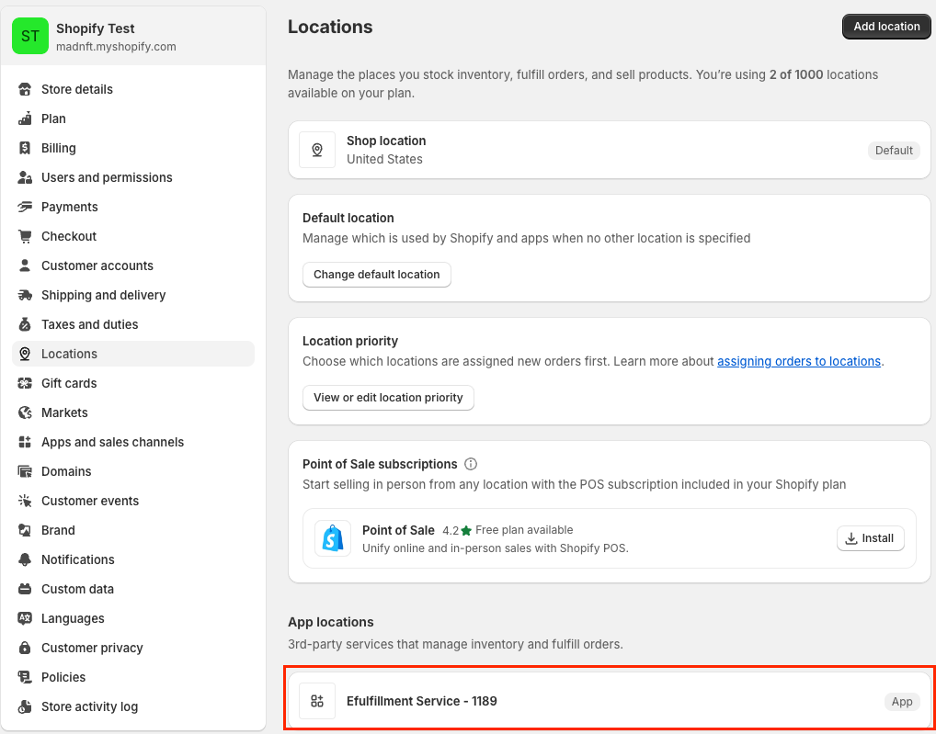
Moving your products can be quickly and easily handled using the bulk editor tool in Shopify’s inventory section. This can be found under Products in your main sidebar menu. You’ll want to select all of your products we will be fulfilling, and then click the Bulk Edit button indicated below:

You should see the following screen once you click on Bulk Edit:

You’ll want to click on the columns button, and then navigate down to “Quantities by location,” and check the box for our app location:
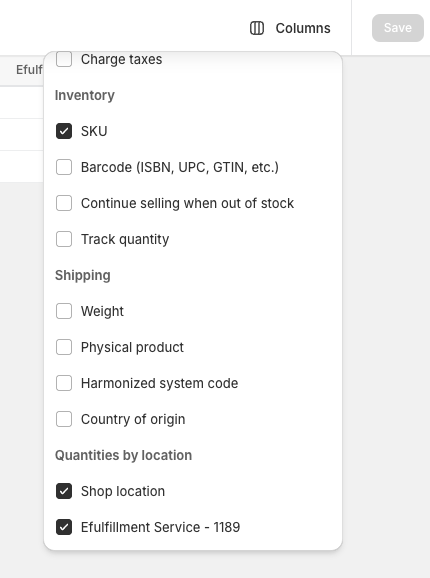
You will now see that the app location appears next to your location:

Now you will need to select all cells in the Efulfillment service column, and then click on a cell to get a pop-up which asks if you want to stock these products in this location.

Check the pop-up, and your inventory will now be stocked at both your location and the app location.

Now you’ll want to deplete the inventory count at your location, and add it to the new app location.
Note: if you will continue to sell inventory from your location, do not remove all of the inventory from that location.

Now select all the fields in your location like you did for the app location, and uncheck the “stock at this location” indicator. Do not do this if you still need stock at your location.

Finally, hit save, and your inventory will be adjusted.
One caveat to this process: you cannot move inventory or unstock inventory from a location if orders are attached to that inventory. So you will have to make sure all your uncompleted orders with inventory attached have been resolved before you can complete this step.
Step 3: Adjust Other Shopify Settings
There are some other Shopify settings you should adjust in order to ensure that everything works smoothly. First, navigate to the General section of your settings, and from there, down to the Order processing section:
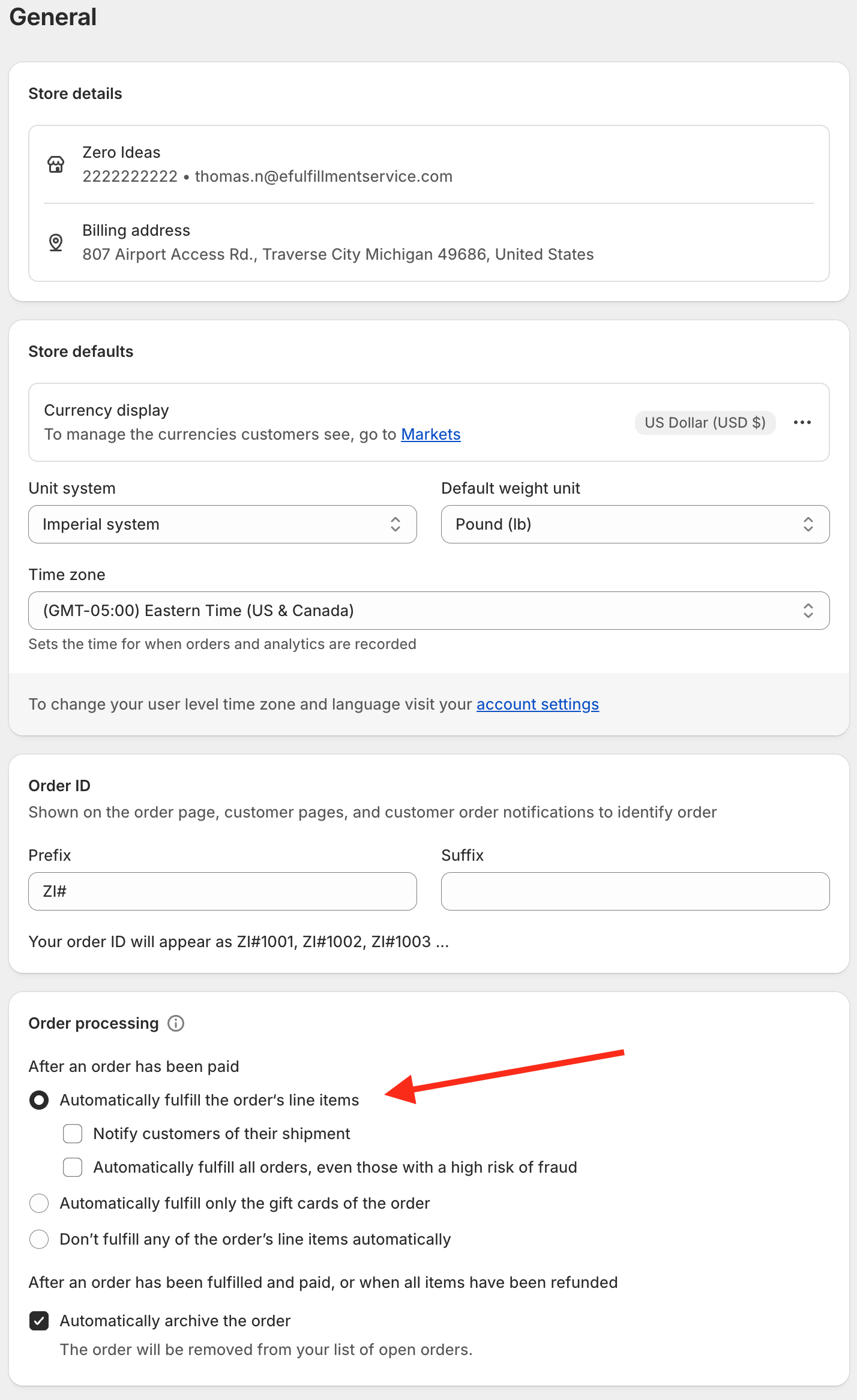
As mentioned above, Shopify orders have to have fulfillment requested in order to be pulled in by our integration. This can either be done manually by you, or you can select the “Automatically fulfill the order’s line items” option above, and Shopify will request fulfillment as soon as an order has successful payment. Please note that this will request fulfillment for all orders after payment, not only the orders being fulfilled by us.
The next step you will need to take is to edit your shipping profiles in order to assure that orders for your products fulfilled at EFS have fulfillment request by EFS, and not your other locations. For this, you’ll want to navigate to the Shipping and Delivery section of your store’s settings. You’ll see your shipping profiles at the very top of the page:
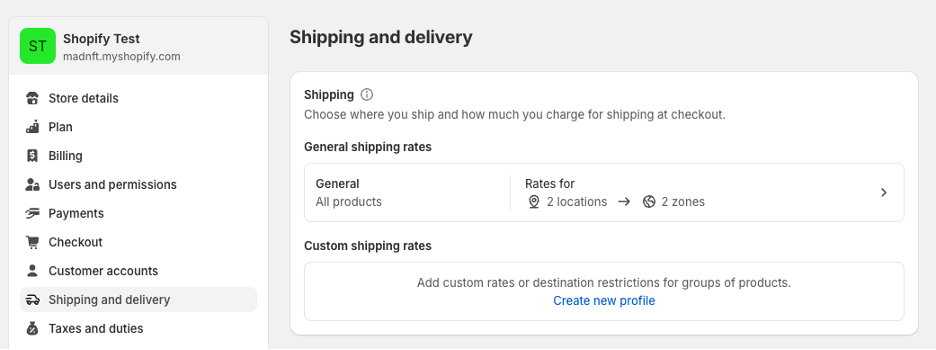
Unless you have a more complicated shipping setup, your page will likely look like this, where you have one general shipping profile. If you’ll only have one shipping profile with all your items coming to us, this transition will be relatively simple.
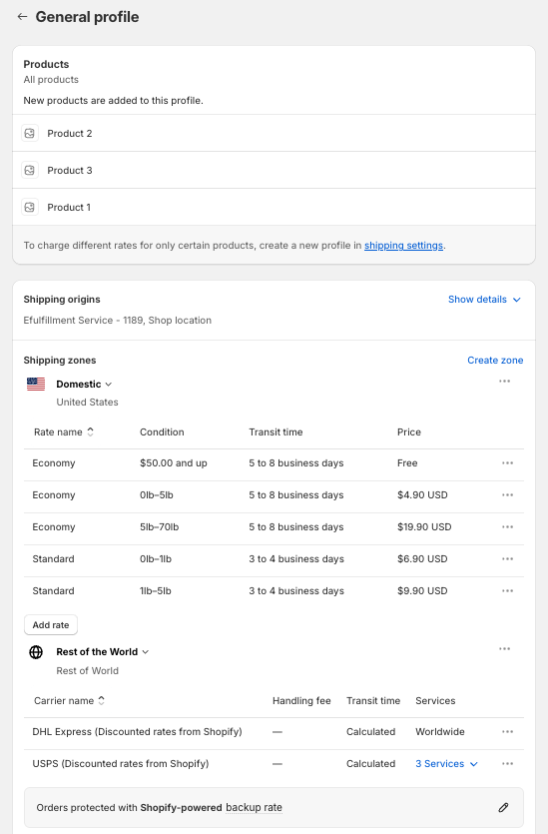
With a general profile, you’ll see your products attached to that profile at the top, and then the rates you have set up underneath that. If all you’re doing is moving your product from the store location to the app location, all you’ll need to do here is remove the store location from the shipping profile. The reason you’ll want to do this is because even with all the inventory stocked in the EFS app location, we’ve found that sometimes Shopify decides to fulfill the product at the store location anyway if it is attached to the shipping profile. So in order to limit errors, we have you take this extra step to ensure products don’t get fulfilled at the wrong location.
All you need to do to remove the store location is to click on the “Show details” link shown above, which will show you your locations connected to the profile with pencil buttons next to each location. Simply click the pencil next to the store location which will display the following pop-up:
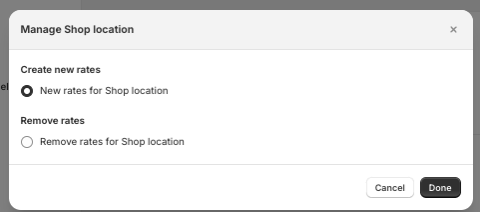
Just click “Remove rates for Shop location”, and click done, and the store location will be removed.
More Complicated Shipping Profile Scenarios
Some stores, however, have more complicated shipping profile scenarios. While it is outside the scope of this article to provide answers to all the potential scenarios, we can offer some tips that may help you, and if not, please do not hesitate to contact your Client Care Representative. First, some general information:
- Products can only be attached to one shipping profile at a time. Shopify does not support adding a product to more than one shipping profile. So any rates or conditions you want to attach to an item have to be present in the profile you create.
- If you already have multiple shipping profiles already setup to incorporate various shipping conditions, you may either be able to add the EFS app location to those profiles, or you may wish to create a completely separate one for EFS-shipped products. But incorporating the above tip, if you create a new shipping profile, you will have to remove products from the other shipping profiles, and then add them to the new shipping profile.
- If you want the same product to ship line with multiple different shipping profiles, the only solution for this at this time is to create new product listings for the products that will go to each profile. So for example, if you had a shipping profile for US orders, and a separate one for international orders, and you wanted the same product to be able to ship on either profile, you would need two separate product listings for the same product.
So let’s take one example that we often come across at EFS, and see how these rules impact how that would be structured. Often we have clients who only want to fulfill their US orders through EFS, and have their international orders fulfilled at a foreign fulfillment center. There are two different scenarios that might occur here.
The first is that a select group of items is stored at EFS, and a separate set stored internationally. This is an easy use case. All you would need to do is create two separate shipping profiles, one with only rates for the US, and one with only rates for the rest of the world. You would then attach the appropriate products to each profile, and make the location on the US profile our app location, and make the location on the international profile the foreign fulfillment center.
The second case is when you want the same product shipped from EFS if it ships to the US, but shipped from your foreign fulfillment center if it ships internationally. The problem with this scenario is, as stated above, that Shopify does not support product being attached to multiple shipping profiles. So you have two workarounds to this lack of base Shopify functionality:
- Create duplicate product entries for the international shipping profile. This is a little cumbersome, because you will either need to create a storefront with localization so that international products appear to international customers, and US products appearing for US customers, or you will have to show two versions of every product to consumers in your store, and have them pick the correct one. It is also important to note that while the product entries for the international items are the same, they must have a different title and SKU from the domestic products, or we will not be able to pull your cart items or sync your inventory correctly due to the duplication.
- There are many third party order management apps in Shopify’s App Store which will take information about your orders and use logic to perform actions like assigning the order to the appropriate location. We cannot assist you with setting up this kind of third-party application, nor can we recommend a specific application, but Shopify should be able to assist you with this process.
Confirming Success
After you have successfully setup your Shopify storefront to send orders to us, you’ll want to confirm everything is working appropriately. The first thing you can do to confirm this is to navigate to the Cart Items section of your integration. It should be empty at this time, and ask you to Refresh Cart Items to get started. If everything has been setup properly, your items should come through, and you should be able to view them all here, as well as start setting up any SKU mappings you may have. If the items do not appear on refresh, there is an issue that must be resolved, which your Client Care Representative can assist you with. Finally, if you don’t have any orders ready to be pushed to our system, you may wish to create a test order in order to make sure orders are flowing properly from your cart to our system. Again, if everything is working properly, as soon as your order has fulfillment requested, within a short amount of time you should be able to see that order reflected in the Received Orders section of your integration. If it does not get pulled in, you’ll want to contact your Client Care Representative for more assistance.
Setting Up Your Ship Mappings
Finally, after confirming that everything has been successfully connected, you’ll want to setup your ship mappings for this integration. You can do this under the “Ship Maps” section of your integration:
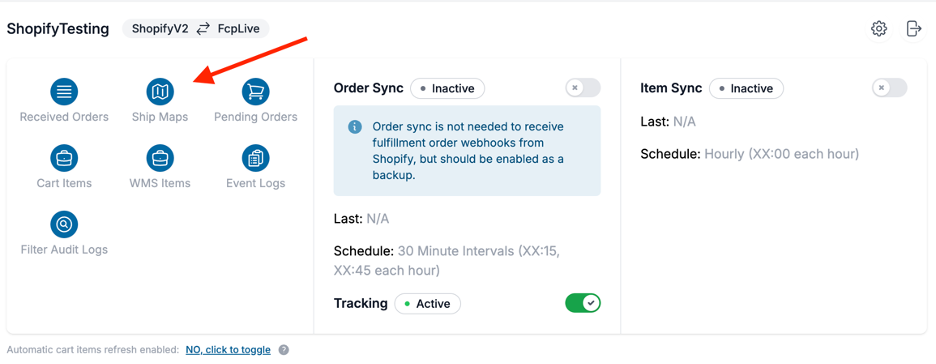
Once there, you will be asked to set up a new ship mapping by clicking the blue “+ New Ship Map” button, which will bring you to this screen:
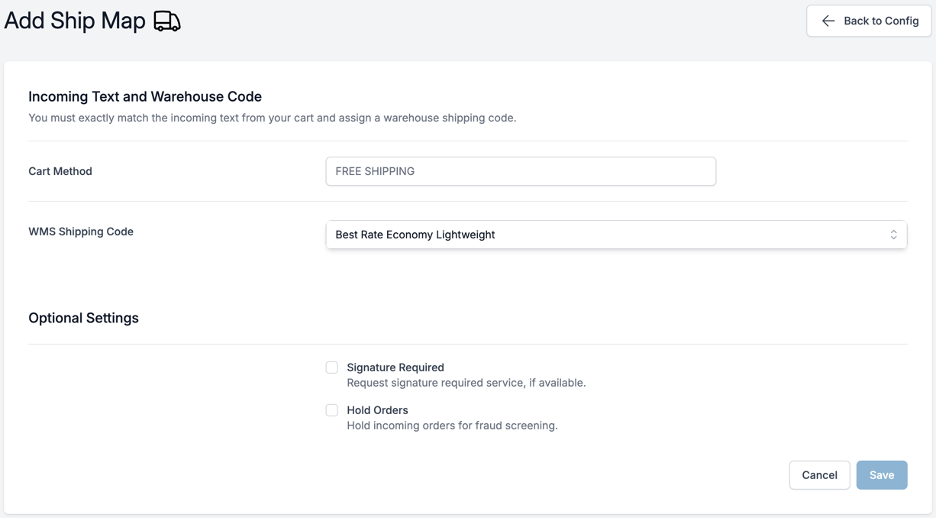
Here, you’ll need to input the shipping code from your Shopify store that incoming orders will be using, and then select one of EFS’s shipping codes that you will be mapping your ship code to. You can also indicate that signatures are required for each order with this ship code, and that orders with this ship code should be held for fraud screening. To find your shipping codes in Shopify, navigate to your shipping profiles under “Shipping and Delivery in your store’s settings, as you did above. You’ll want to pay attention to the “Shipping Origins” section shown below:
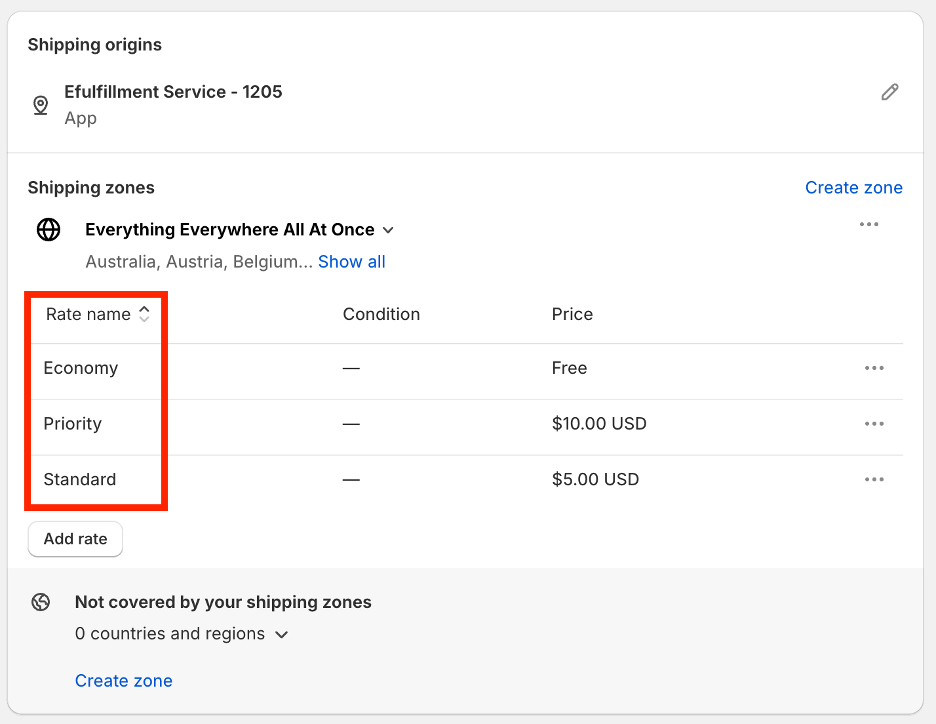
The rate names highlighted here are what you should be entering into the “Cart Method” field of your ship mapping, and should be copied exactly as shown in Shopify. If they do not match exactly, the mapping will not work. You should create a ship mapping for each ship method connected to the EFS location.
Notice on Orders from Major Marketplaces
One issue we’ve been keeping an eye on at EFS is that some clients have had issues with orders entering the carrier system in a timely manner when utilizing Shopify Marketplace Connect to fulfill orders from Amazon, Walmart, and Target Plus. These retailers have stringent guidelines to meet, and it turns out that one of the basket of carrier services we employ in our Economy Lightweight and Economy Lightweight Post rate shop options was not meeting these guidelines. With direct integrations from those marketplaces, the solution was simply to avoid using that rate code. However, for Shopify integrations, the problem was a little more complex, because Marketplace Connect orders flow together with non-marketplace orders, and clients might want the cheaper shipping available for their non-marketplace orders.
In response, we have developed a solution that allows us to see the source of all incoming Shopify orders, and if the source is one of these major marketplaces, and your ship mappings utilize the Economy Lightweight or Economy Lightweight Post rate shop groups, our system will switch from that rate shop group to an alternate Economy Lightweight group that includes only services that can meet the marketplace requirements. No action is required on your part, everything happens behind the scenes at EFS.