Amazon Integration Guide

Purpose

This guide provides step-by-step instructions for connecting your Amazon Seller Central account to EFS for both merchant fulfillment (orders shipped by EFS) and FBA prep services (preparing inventory for Amazon FBA).

1. Before You Begin

Requirements Checklist

☐ EFS Account Setup

  • Active FCP account with login credentials
  • SKUs entered in FCP (must match Amazon ASINs or Seller SKUs)
  • Inventory received and in stock at EFS

☐ Integration Portal Access

☐ Amazon Seller Central Access

  • Active Amazon Seller Central account
  • Professional seller account (required for API access)
  • Admin access to authorize API connection

Important: If you don’t have Integration Portal credentials, contact your Client Care Account Specialist before proceeding.

2. Understanding Amazon Integration Types

EFS offers two types of Amazon services:

Merchant Fulfillment (MFN)

  • EFS fulfills orders placed on Amazon directly to customers
  • You remain the merchant of record
  • Orders sync automatically from Amazon to EFS
  • Tracking updates sent back to Amazon
  • Inventory levels can sync to prevent overselling

FBA Prep Services

  • EFS prepares your inventory for shipment to Amazon FBA warehouses
  • Services include labeling, poly bagging, bundling, case packing
  • You create shipments in Amazon Seller Central
  • You place prep orders in FCP
  • EFS ships prepared inventory to Amazon fulfillment centers

This guide covers both services. Follow the sections relevant to your needs.

3. Setting Up Merchant Fulfillment Integration

Step 1: Access Integration Portal

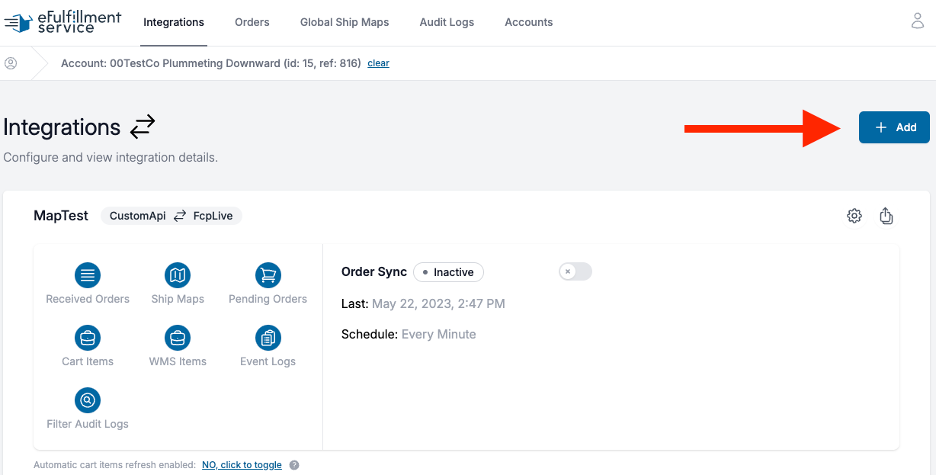
  1. Log into the Integration Portal at https://integration.efulfillmentservice.com
  2. Navigate to the Integrations tab
  3. Click the blue “+ Add” button in the upper right

Step 2: Select Amazon

  1. From the dropdown menu, select Amazon
  2. The Amazon integration configuration page will appear

Step 3: Configure Basic Settings

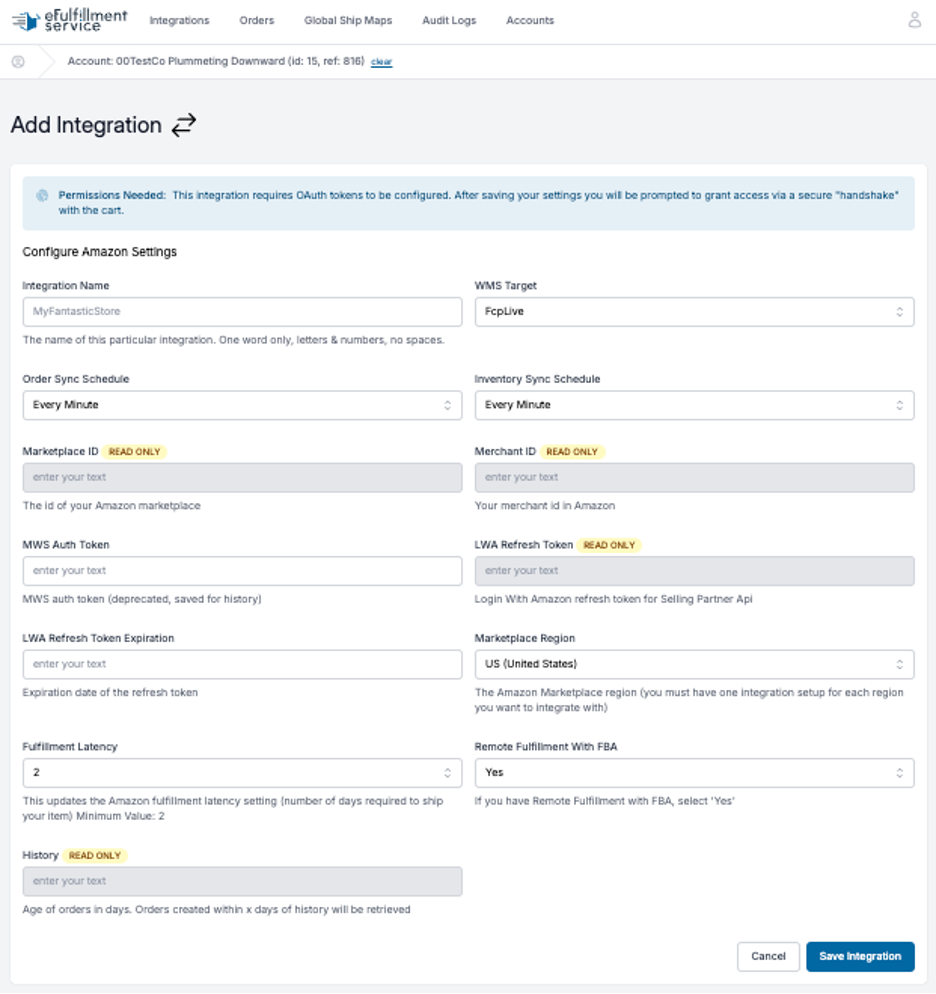
Fill out the following fields:

Integration Name:

  • Enter a one-word name (letters and numbers only, no spaces)
  • Example: “AmazonUS” or “AmazonStore”
  • Helps identify the integration if you have multiple

WMS Target:

  • Should auto-populate with “FcpLive”
  • If you have multiple warehouses, select the appropriate one

Order Sync Schedule:

  • How often we check for new orders (recommended: Every 30 minutes)
  • Select from dropdown

Inventory Sync Schedule:

  • How often we update Amazon inventory (recommended: Hourly or Every 2 hours)
  • Select from dropdown

MWS Auth Token:

  • Leave blank (legacy field, not used)

LWA Refresh Token Expiration:

  • Leave blank (auto-populated after OAuth)

Marketplace Region:

  • Select your marketplace:
    • North America (US, Canada, Mexico)
    • Europe (UK, Germany, France, Italy, Spain, etc.)
    • Far East (Japan, Australia, etc.)
  • You need a separate integration for each region

Fulfillment Latency:

  • Number of days to fulfill orders after they’re placed
  • Recommended: 2-3 days
  • This tells Amazon how long before tracking will be uploaded
  • Accounts for time between order placement and EFS receipt

Important: Setting this too low (1 day) may cause late shipment issues. EFS ships within 1 business day after we receive the order, but there’s delay between placement and our receipt.

Remote Fulfillment with FBA:

  • Select Yes if you use Amazon’s remote fulfillment feature
  • Select No if you don’t (most common)
  • Choosing incorrectly will cause integration issues

Step 4: Save Integration

Click the blue “Save Integration” button at the bottom of the page.

Important: Do NOT close the window. You’ll be automatically redirected to Amazon for authorization.

Step 5: Authorize Amazon Access (OAuth)

  1. You’ll be redirected to Amazon Seller Central login
  2. Log in with your Amazon Seller Central credentials
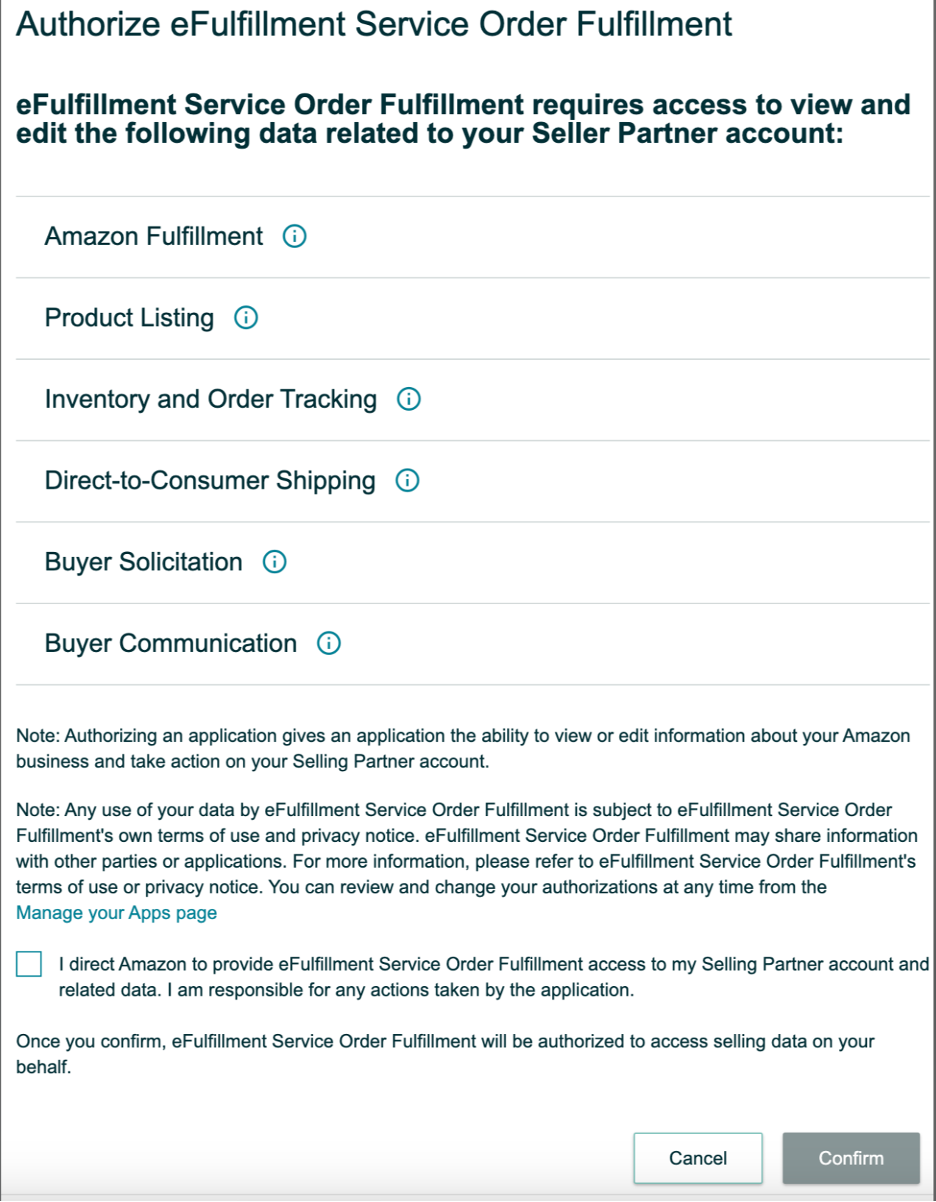
  3. Amazon will show the permissions EFS is requesting:
    • Read order information
    • Update order status
    • Access inventory data
    • Upload tracking numbers
  4. Check the box to acknowledge the permissions
  5. Click “Confirm”

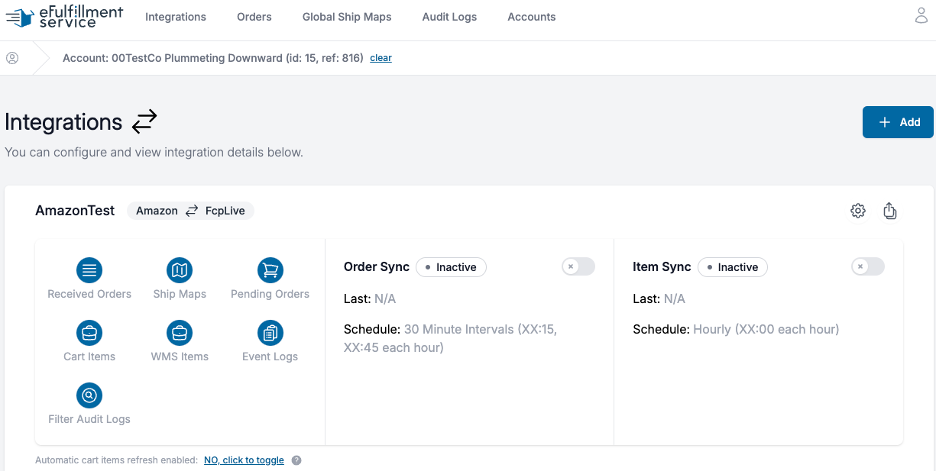
You’ll be redirected back to the Integration Portal.

Step 6: Verify Connection

After redirect, verify the following fields are now populated:

  • Marketplace ID
  • Merchant ID
  • LWA Refresh Token

If these fields are filled in, your connection is successful.

4. Testing the Amazon Integration

Step 1: Refresh Cart Items

  1. In Integration Portal, go to your Amazon integration
  2. Click “Cart Items”
  3. Click the blue “Refresh Cart Items” button

Important: Amazon does NOT provide a product list through the API. You must manually add SKUs you want to sync.

Step 2: Add Custom Cart Items

For each product you want EFS to fulfill:

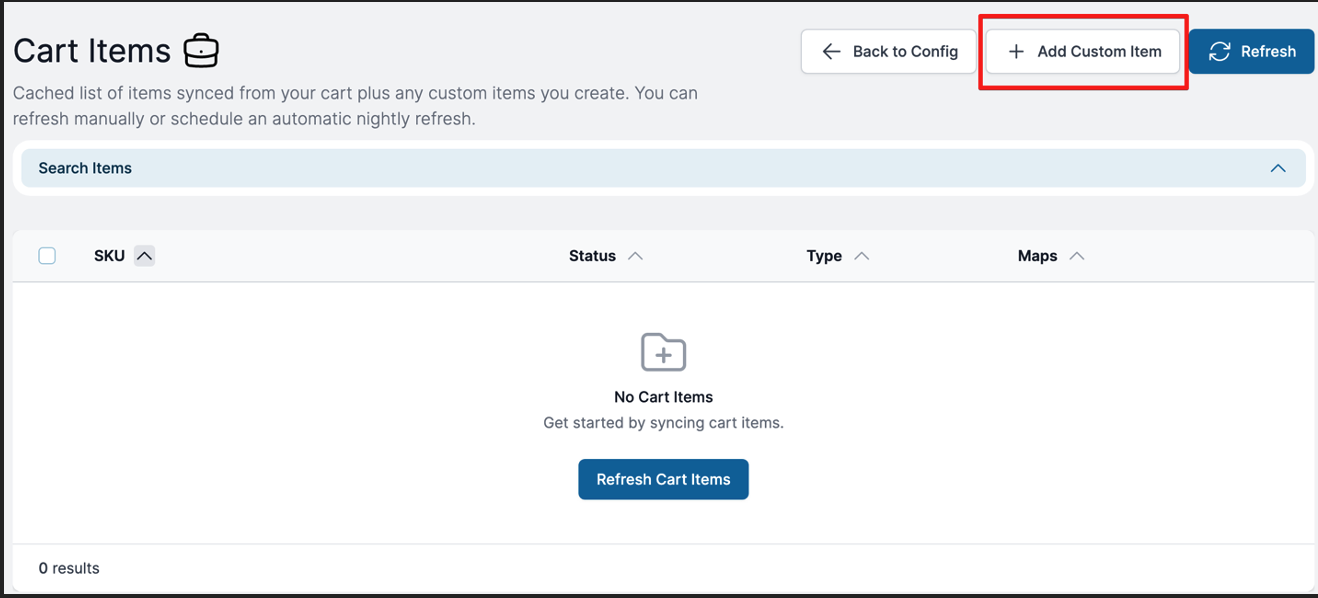
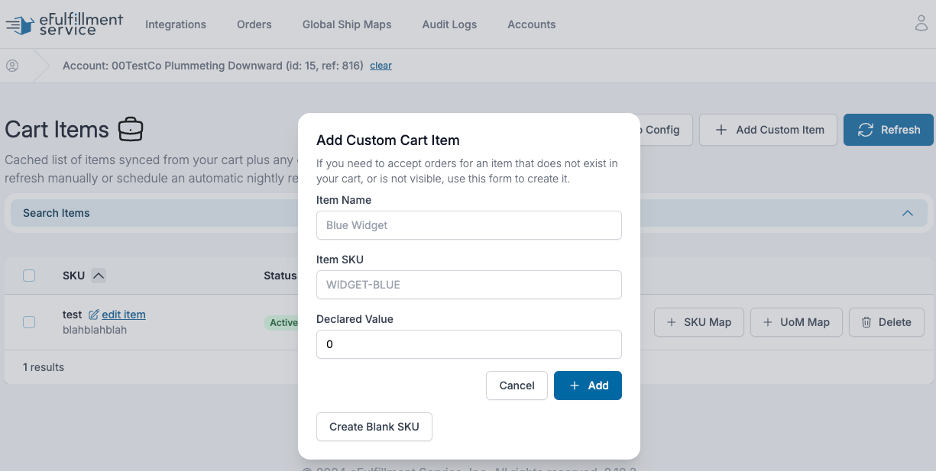
  1. Click “+ Add Custom Item”
  2. Fill out the form:
    • Item Name: Product description (for your reference)
    • Item SKU: Must match EXACTLY as listed in Amazon
    • Declared Value: Leave blank
  3. Click “+ Add”

SKU Matching:

  • Use Amazon’s “Seller SKU” (not ASIN)
  • Found in: Seller Central → Inventory → Manage Inventory
  • Must match FCP SKU or create SKU mapping

Tip: For multiple products, contact your Client Care Account Specialist for bulk upload assistance.

Step 3: Create a Test Order

  1. In Amazon Seller Central, create a test order
  2. Use Amazon’s “Test Order” feature or place a real order
  3. Ensure the product SKU is in your FCP inventory
  4. Wait for next sync cycle (up to 30 minutes)

Step 4: Check Received Orders

  1. In Integration Portal, go to your Amazon integration
  2. Click “Received Orders”
  3. Look for your test order

Success indicators:

  • Order appears with status “NEW” or “ACCEPTED”
  • Order details are correct (address, SKU, quantity)

Step 5: Verify Order in FCP

  1. Log into your Fulfillment Control Panel
  2. Go to Orders → Search/Edit Orders
  3. Search for the test order

Success: Order appears as “Pending” (yellow box) and ready for fulfillment

5. Setting Up Inventory Sync

Amazon inventory syncing prevents overselling by updating Amazon with your available FCP inventory.

Step 1: Activate Products for Sync

  1. In Integration Portal, go to Cart Items
  2. Find products you want to sync
  3. Click the green “Play” button in the Options column
  4. Status changes to “ACTIVE”

Only activate products you want synced. Unactivated products won’t have inventory updated.

Step 2: Set Sync Schedule

  1. Go to your Amazon integration main page
  2. Verify Inventory Sync Schedule is set appropriately
  3. Recommended: Hourly or Every 2 hours
  4. Save if you made changes

Step 3: Enable Inventory Sync

  1. Find the Inventory Sync toggle on the integration main page
  2. Switch to ON (blue)

Step 4: Monitor First Sync

Wait for the next sync cycle, then:

  1. Go to Amazon Seller Central
  2. Navigate to Inventory → Manage Inventory
  3. Verify quantities match your FCP inventory
  4. Check that quantity updates when you adjust FCP inventory

Note: Syncing updates the Fulfillment Latency setting on a SKU-by-SKU basis. Changes to Fulfillment Latency only apply when inventory syncs.

6. Configuring Ship Method Mappings

Amazon uses standardized shipping service levels that need to be mapped to EFS shipping codes.

Step 1: Access Ship Maps

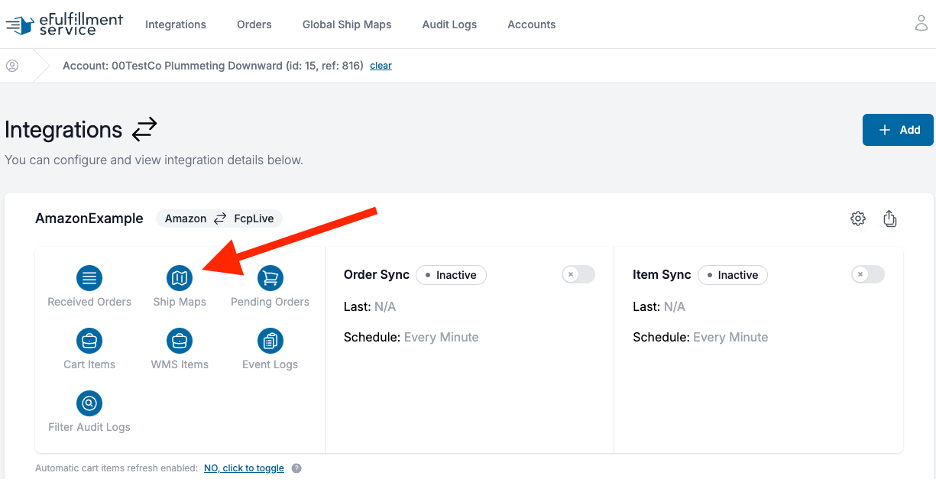
  1. In Integration Portal, go to your Amazon integration
  2. Click “Ship Maps” in the navigation

Step 2: Create Standard Mappings

Amazon typically uses these shipping methods:

For Domestic Orders:

Amazon Method EFS Shipping Code Purpose
Standard GROUND or Best Rate Economy Lightweight Post 3-5 day ground shipping
Expedited 3DAY 3-day express
NextDay OVERNIGHT Next day delivery
SecondDay 2DAY 2-day delivery

For International Orders:

Amazon Method EFS Shipping Code Purpose
International INTERNATIONAL_DEFAULT Standard international
IntlExpress INTERNATIONAL_PRIORITY Express international

Step 3: Create Each Mapping

For each method:

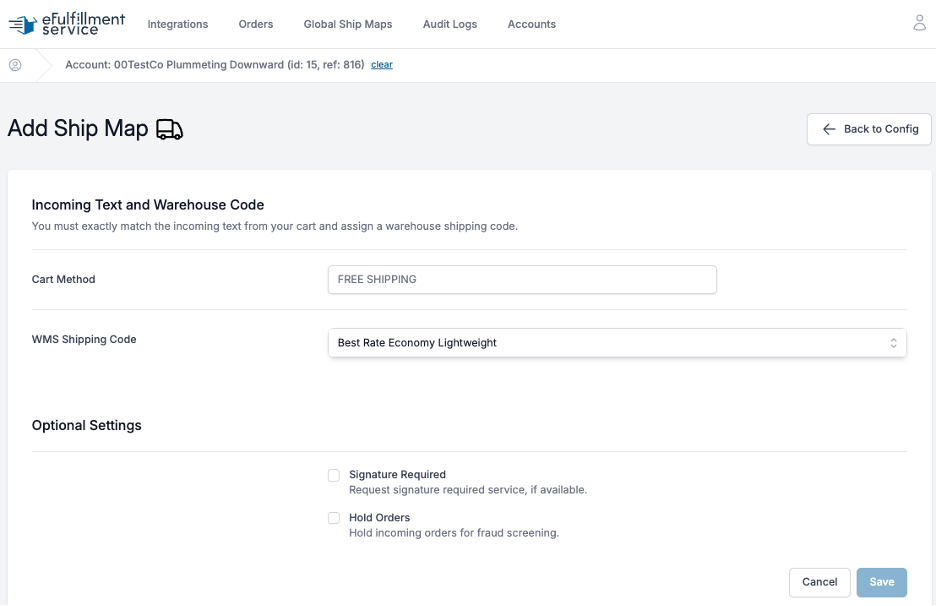
  1. Click “+ New Ship Map”
  2. Cart Method: Enter Amazon’s method name exactly (case-sensitive)
  3. WMS Shipping Code: Select appropriate EFS code from dropdown
  4. Signature Required: Check if needed (typically only for high-value)
  5. Click “Save”

Repeat for all methods used in your Amazon store.

Tip: Use “Best Rate Economy Lightweight Post” for Standard method to enable rate shopping and save on shipping costs.

7. Enabling Order Sync

Once testing is successful, enable automatic order syncing.

Step 1: Turn On Order Sync

  1. Go to your Amazon integration main page in IS2
  2. Find the Order Sync toggle
  3. Switch to ON (blue)

Step 2: Monitor Initial Orders

For the first 24-48 hours:

  • Check Received Orders log daily
  • Verify orders flow correctly to FCP
  • Watch for any error messages
  • Confirm tracking updates return to Amazon

Step 3: Verify Tracking Updates

  1. Wait 4-6 hours after an order ships
  2. Check Amazon Seller Central → Orders
  3. Verify tracking number appears
  4. Confirm order status updated to “Shipped”

Tracking updates occur:

  • Approximately 4 hours after order ships
  • Multiple times per day (every 30 minutes at :20 and :50)

8. FBA Prep Services Overview

If you use EFS to prepare inventory for Amazon FBA, follow this section.

What is FBA Prep?

EFS offers preparation services for inventory being sent to Amazon FBA warehouses:

  • FNSKU labeling
  • Poly bagging
  • Bubble wrapping
  • Case packing
  • Pallet preparation
  • Shipment creation assistance

FBA Prep Process Overview

  1. You create FBA shipment in Amazon Seller Central
  2. You download FNSKU labels and shipment labels
  3. You place prep order in FCP
  4. You submit labels and instructions via support ticket
  5. EFS prepares and ships inventory to Amazon

This is NOT an automated integration. Each prep order requires manual coordination.

9. Creating FBA Prep Orders (Case Pack Method)

Use this method when shipping full cases of the same product to Amazon.

Step 1: Create Shipment in Amazon Seller Central

  1. Log into Amazon Seller Central
  2. Go to Inventory → Manage FBA Inventory
  3. Select products to send
  4. Click “Send/Replenish Inventory”
  5. Choose “Send inventory to Amazon (Shipping Queue)”

Step 2: Complete Case Pack Template

  1. During shipment creation, Amazon offers case pack templates
  2. Download and complete the template for your products
  3. Upload the completed template
  4. Save the template for future shipments

Step 3: Generate FNSKU Labels

  1. In shipment workflow, select “Merchant” for labels (you provide)
  2. Download FNSKU label PDF
  3. Save to your desktop
  4. Repeat for each product in shipment

Step 4: Review Shipment Plan

  1. Amazon shows where products will ship (which FBA warehouse)
  2. Note the shipment ID (starts with “FBA”)
  3. Note the quantity and SKUs for each destination

Step 5: Download Box Labels

  1. Proceed through shipment workflow
  2. Select “Small parcel delivery” or “Less than truckload” as appropriate
  3. Download box labels (one per carton)
  4. Download pallet labels if shipping LTL freight
  5. Save all labels to desktop

Step 6: Create Order in FCP

  1. Log into Fulfillment Control Panel
  2. Go to Orders → Create a new order
  3. Enter shipping/billing address as:

Amazon FBA Prep Shipment
807 Airport Access Rd Unit D
Traverse City, MI 49686

  1. Select “FBA Prep” from shipping method dropdown
  2. Enter Order Number: FBA shipment ID (example: FBA15ABCD123)
  3. Select SKUs and quantities to be prepped
  4. Click “Verify Order”
  5. Review for accuracy
  6. Click “Submit Order”
  7. Note the EFS order number

Step 7: Submit Support Ticket

Create a support ticket with title: “FBA PREP ORDER – EFS #[number], FBA #[shipment ID]”

Attach the following:

  • All FNSKU label PDFs
  • All box label PDFs
  • Pallet labels (if LTL shipment)
  • Pack group information from Amazon

Include in ticket message:

  • Special instructions (if any)
  • Number of units per SKU
  • Destination warehouse(s)
  • Preferred ship date (if time-sensitive)

This ticket is your communication channel for this prep order. Do not create multiple tickets for the same order.

10. Creating FBA Prep Orders (Mixed/Single Item Method)

Use this method when shipping individual units or mixing different products in boxes.

Step 1: Create Shipment in Amazon Seller Central

  1. Log into Amazon Seller Central
  2. Go to Inventory → Manage FBA Inventory
  3. Select products to send
  4. Click “Send/Replenish Inventory”
  5. Choose individual units (not case packed)

Step 2: Generate FNSKU Labels

  1. Select “Merchant” for labels (you provide)
  2. Download FNSKU label PDF for each SKU
  3. Save labels to desktop

Step 3: Review Pack Groups

Amazon will organize your shipment into “pack groups” (shipments to different warehouses).

Important: You must create a separate FCP order for EACH pack group.

For each pack group, note:

  • Pack group number
  • Destination warehouse
  • SKUs and quantities in that group

Step 4: Create FCP Orders (One Per Pack Group)

For each pack group:

  1. Go to Orders → Create a new order in FCP
  2. Enter shipping/billing address as:

Amazon FBA Prep Shipment
807 Airport Access Rd Unit D
Traverse City, MI 49686

  1. Select “FBA Prep” from shipping method dropdown
  2. Enter Order Number: FBA shipment ID + pack group (example: FBA15ABCD123-PG1)
  3. Select only the SKUs and quantities for THIS pack group
  4. Click “Verify Order”
  5. Click “Submit Order”
  6. Note the EFS order number

Repeat for each pack group.

Step 5: Download Shipping Labels

After creating all pack groups in Amazon:

  1. Proceed to shipping step in Amazon workflow
  2. Choose “Amazon-partnered carrier” or “Other carrier”
  3. Confirm shipping preferences
  4. Download box labels for each pack group
  5. Download pallet labels if needed
  6. Save all labels

Step 6: Submit Support Ticket for Each Pack Group

Create separate support ticket for each EFS order:

Title: “FBA PREP ORDER – EFS #[number], FBA #[shipment ID]-PG[#]”

Attach:

  • FNSKU labels for SKUs in this pack group
  • Box labels for this pack group
  • Pack group outline from Amazon

Important: Match labels to the correct EFS order number to ensure proper packing.

11. FBA Prep Best Practices

Before Sending Inventory:

  • ✓ Verify all SKUs are entered in FCP
  • ✓ Ensure inventory has scannable barcodes (or budget for EFS labeling)
  • ✓ Complete Amazon shipment workflow first
  • ✓ Download all labels before creating FCP order
  • ✓ Know your pack groups and destinations

When Creating Prep Orders:

  • ✓ Use clear order numbers (FBA shipment ID)
  • ✓ Create one order per pack group
  • ✓ Double-check SKUs and quantities
  • ✓ Include all special instructions in support ticket
  • ✓ Attach correct labels to correct EFS order

Communication:

  • ✓ Use support tickets (not email or phone) for prep coordination
  • ✓ One ticket per prep order
  • ✓ Include all labels and instructions in initial ticket
  • ✓ Respond promptly to questions from prep team
  • ✓ Provide preferred ship date if time-sensitive

Timing:

  • ✓ Allow 3-5 business days for prep completion
  • ✓ Peak season (Q4): Allow 5-7 business days
  • ✓ Large shipments (100+ units): Allow 5-10 business days
  • ✓ Submit orders early to avoid Amazon receiving deadline issues

12. Troubleshooting Common Issues

Merchant Fulfillment Issues

Issue: Orders Not Pulling from Amazon

Possible causes:

  • OAuth connection expired
  • History setting too short
  • Products not added to Cart Items

Solutions:

  • Re-authorize integration (repeat Section 3, Step 5)
  • Increase History setting in integration config
  • Add SKUs as custom cart items

Issue: Tracking Not Updating in Amazon

Possible causes:

  • Order manually marked shipped in Amazon
  • Tracking upload timing (4-hour delay)
  • Connection issue

Solutions:

  • Don’t manually mark orders shipped in Amazon
  • Wait 6 hours after shipment
  • Check order status shows COMPLETED in IS2
  • Contact support if issue persists after 24 hours

Issue: SKU Mismatch Errors

Possible causes:

  • FCP SKU doesn’t match Amazon Seller SKU
  • Using ASIN instead of Seller SKU

Solutions:

  • Verify Seller SKU in Amazon Seller Central
  • Update FCP SKU to match exactly
  • Or create SKU mapping in IS2 Cart Items

FBA Prep Issues

Issue: Labels Don’t Match Inventory

Possible causes:

  • Wrong labels attached to support ticket
  • Multiple pack groups confused
  • Order numbers unclear

Solutions:

  • Verify labels match specific EFS order number
  • Create separate tickets for each pack group
  • Use clear order naming (FBA ID + pack group number)

Issue: Amazon Rejects Shipment

Possible causes:

  • Box dimensions exceed Amazon limits
  • Incorrect labeling
  • Mixed ASINs in same box when not allowed

Solutions:

  • Provide box dimension requirements in prep ticket
  • Double-check label placement requirements
  • Review Amazon’s FBA prep requirements before creating shipment
  • Select “excessive handling” in prep order if reboxing needed

Issue: Prep Taking Longer Than Expected

Possible causes:

  • Large order volume during peak season
  • Complex prep requirements
  • Inventory not yet received at EFS

Solutions:

  • Contact support for status update
  • Allow extra time during Q4 (October-December)
  • Ensure inventory is received before placing prep order
  • Communicate urgent deadlines in support ticket

13. Understanding Amazon Order Statuses

In Integration Portal (IS2)

Status Meaning
NEW Order received from Amazon, awaiting FCP transfer
ACCEPTED Order successfully transferred to FCP
IMPORT ERROR Problem transferring to FCP (check error details)
COMPLETED Order shipped, tracking sent back to Amazon

In Amazon Seller Central

Status Meaning
Pending Order placed, awaiting fulfillment
Processing EFS has received and is processing order
Shipped Order shipped, tracking number provided
Delivered Customer received order

14. Support and Resources

Integration Issues:

  • Submit support ticket: Client Info → Support in FCP
  • Email: [email protected]
  • Phone: 1-866-922-6783 (Press 2 for Customer Service)

FBA Prep Orders:

  • ALWAYS use support ticket system
  • Title format: “FBA PREP ORDER – EFS #[number], FBA #[ID]”
  • One ticket per prep order
  • Attach all labels and instructions

Client Care Account Specialist:

  • Amazon removal orders (special coordination)
  • Complex integration questions
  • Policy questions
  • High-volume FBA prep coordination

Related Guides:

  • Sync Fix Guide (troubleshooting sync problems)
  • FCP Quick Reference Guide (manual order entry)
  • Receiving Guide (inventory preparation standards)

Next Steps

For Merchant Fulfillment:

  1. Complete integration setup and testing
  2. Monitor order flow for first week
  3. Verify tracking updates work correctly
  4. Enable inventory sync if desired
  5. Document ship method mappings

For FBA Prep:

  1. Review Amazon’s FBA prep requirements
  2. Practice creating one test prep order
  3. Familiarize yourself with support ticket process
  4. Plan prep orders in advance of deadlines
  5. Budget appropriate time for prep completion