
Fulfillment Control Panel (FCP) Overview
The Fulfillment Control Panel (FCP) is your central tool for managing every aspect of your eFulfillment Service account. It provides real-time access to inventory levels, order statuses, shipment details, invoices, and reporting tools—all from a secure, web-based platform available 24/7.
1. Accessing the FCP
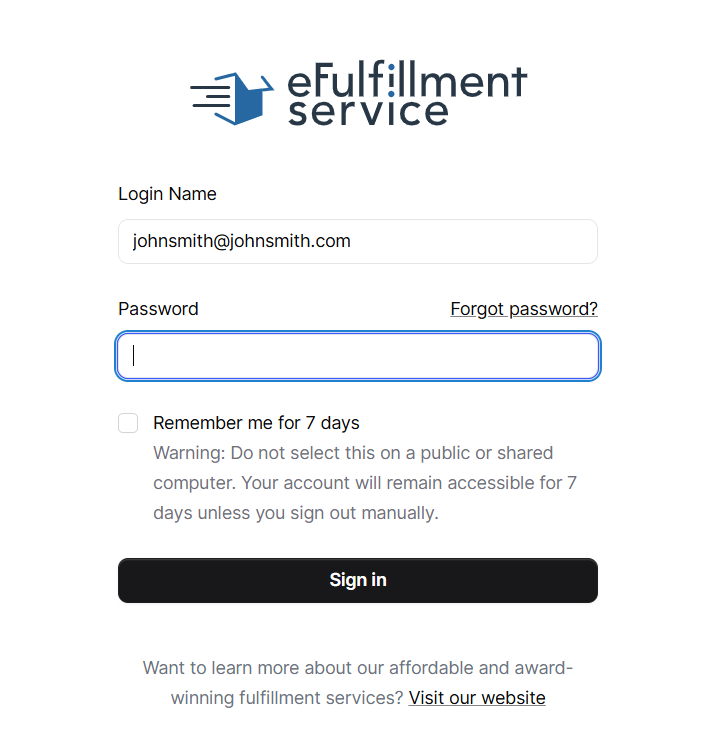
You can log in anytime at https://fcp.efulfillmentservice.com using your username (email address you provided) and the password created during your account setup.
You can also access the FCP from the eFulfillment Service homepage by selecting Customer Login at the top right of the page.
FCP System Access and Security
To enhance security, Multi-Factor Authentication (MFA) is required for the FCP, effective July 15, 2025.
- Session Limits: The FCP has a 9-hour session limit. If a user does not close their browser or actively sign out, they will not be prompted to sign in and re-authenticate for nine hours. If the FCP is inactive for more than nine hours, the user will be asked for their password and instructed to check their email for further instructions.
- Failed Logins: Three attempts to provide credentials will result in the account being locked for 60 minutes. You can, however, click on the “Forgot Password?” link and reset your password at that time to regain access.
- “Remember Me” Feature: Clicking the “Remember Me” box allows a client to stay logged in for seven (7) days, provided they do not actively sign out of the FCP.
- Password Reset: If login fails, clients can click the “Forgot password?” link and choose to use the same password or a new one
2. Main Navigation Menu
The FCP menu is organized into five key areas:
- Client Info – Manage account settings, view inventory, update contact preferences, and create support tickets.
- Orders – View, search, and filter orders by date, status, or shipment details.
- Reports – Generate inventory, transaction, and shipping reports.
- Integrations – You will be directed to the IS2 Portal
- Billing – Review and download invoices.
3. Account Settings
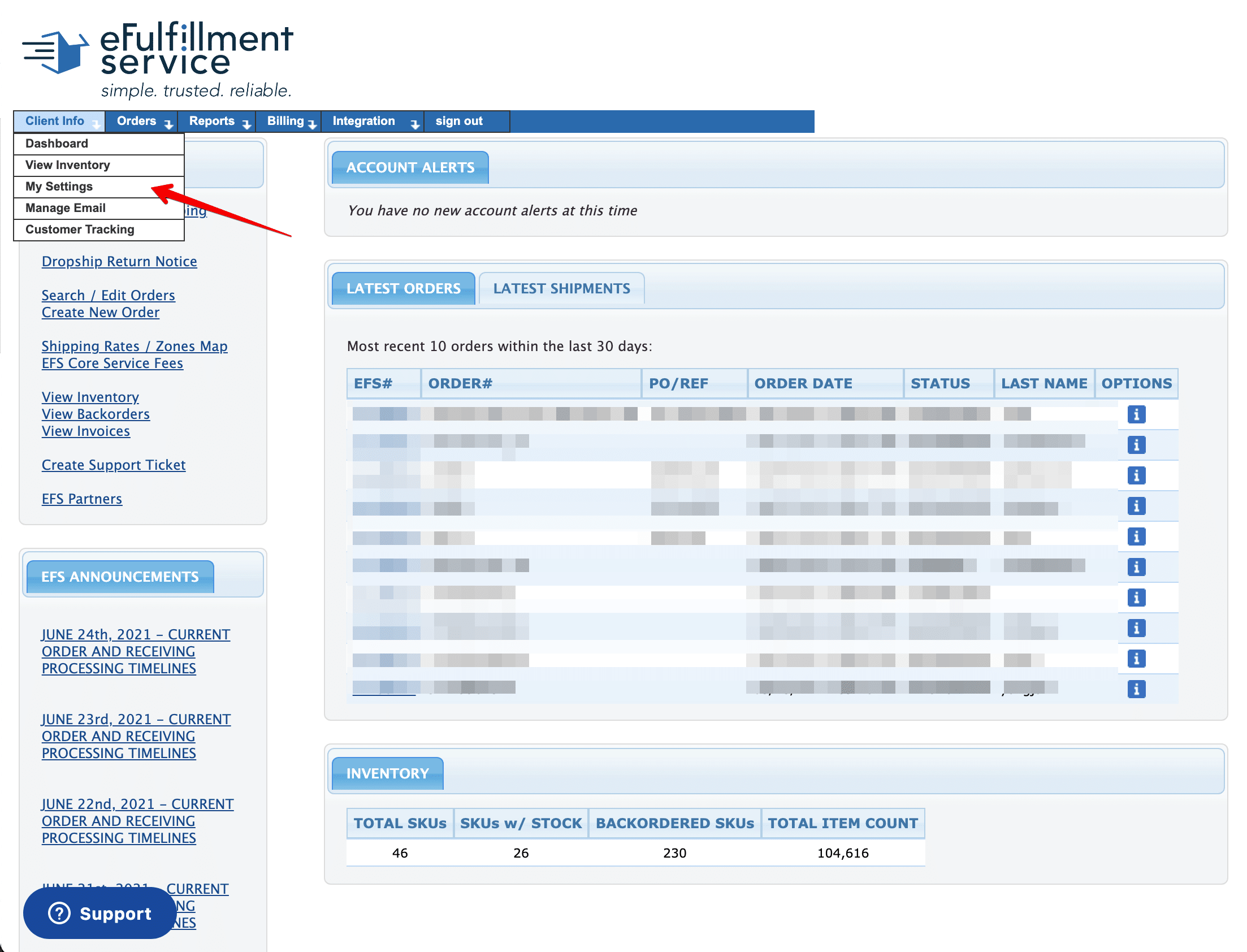
Under Client Info → My Settings, you can:
- Set Ship Confirmation Preferences: Choose if ship confirmation emails should be sent to you, your customers, or both.
- Customize Notifications: Tailor the message content included in your shipping notification emails.
- Manage Returns: Update return instructions (RMA Statement) and packing preferences.
- Update Security: Change your password.
- Save Changes: Ensure you select Update Ship Confirmation Info to apply any modifications.
4. Adding and Managing Products
Before sending inventory to our warehouse, each product must be entered into the system with a unique SKU number.
Steps to add products:
- Navigate to Client Info → View Inventory.
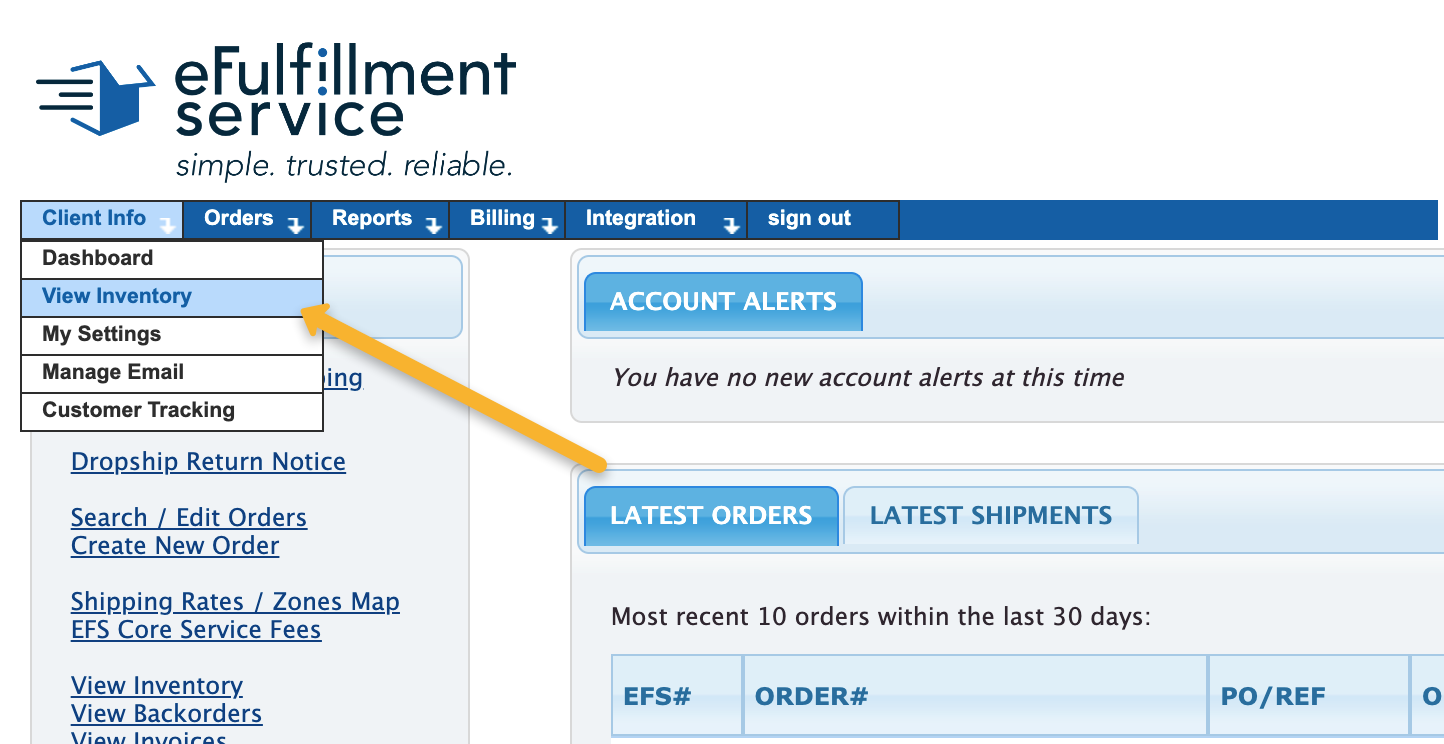
2. Click Add a Product to open the SKU entry form.

3. Enter product details, including SKU, description, and any relevant attributes.
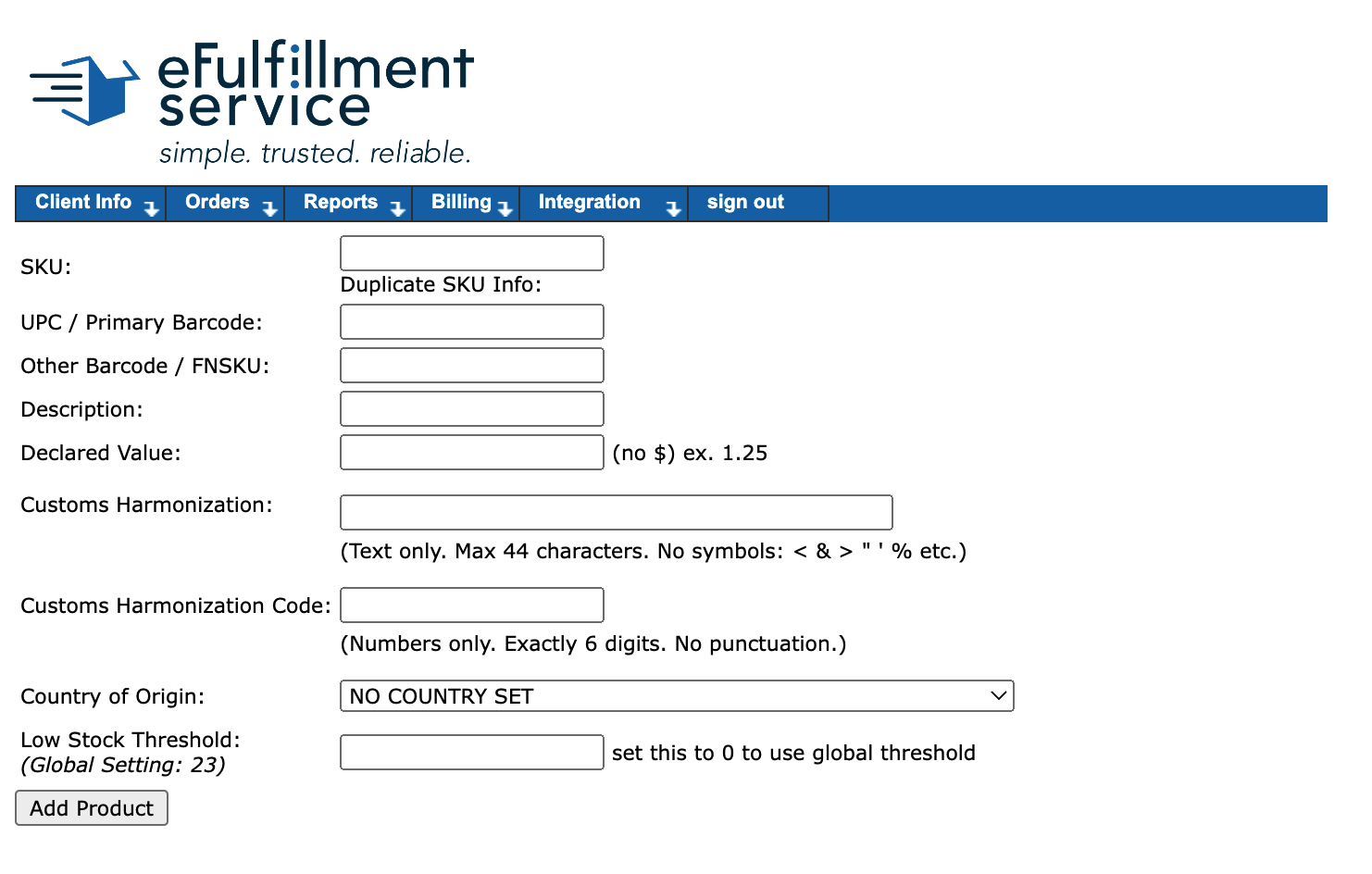
SKU and Product Requirements
- SKU Length: Maximum of 10 characters (letters and numbers only).
- Format: Do not use SKUs that begin with a leading zero (e.g., use 123-A rather than 00123-A).
- Variations: Each unique variation (such as size or color) requires its own unique SKU.
- Matching: The SKU entered in the FCP must match your product labels and packing lists exactly.
- Declared Value: This field must reflect your Retail Price for the item.
- Customs Description: Provide a general category for the item (e.g., “Vitamins” or “T-shirt”).
- Customs Harmonization Code: Must be a maximum of 6 digits (numbers only, no punctuation).
- Management Rules: While you can edit product descriptions at any time, SKUs cannot be renamed or deleted by the client. If a SKU needs to be changed, you must contact EFS support.
4. Click Add Product to save.
Note: The SKU number must match exactly with what appears on your product labels and packing lists.

Once added, your items appear in the Product List where you can view or edit SKUs, descriptions, or history.
5. Viewing Inventory
You can monitor your inventory through two main options:
- List View: Displays all SKUs, current quantities, and warehouse locations.
- Search: Use the search bar to filter by SKU or product name for quick lookups.
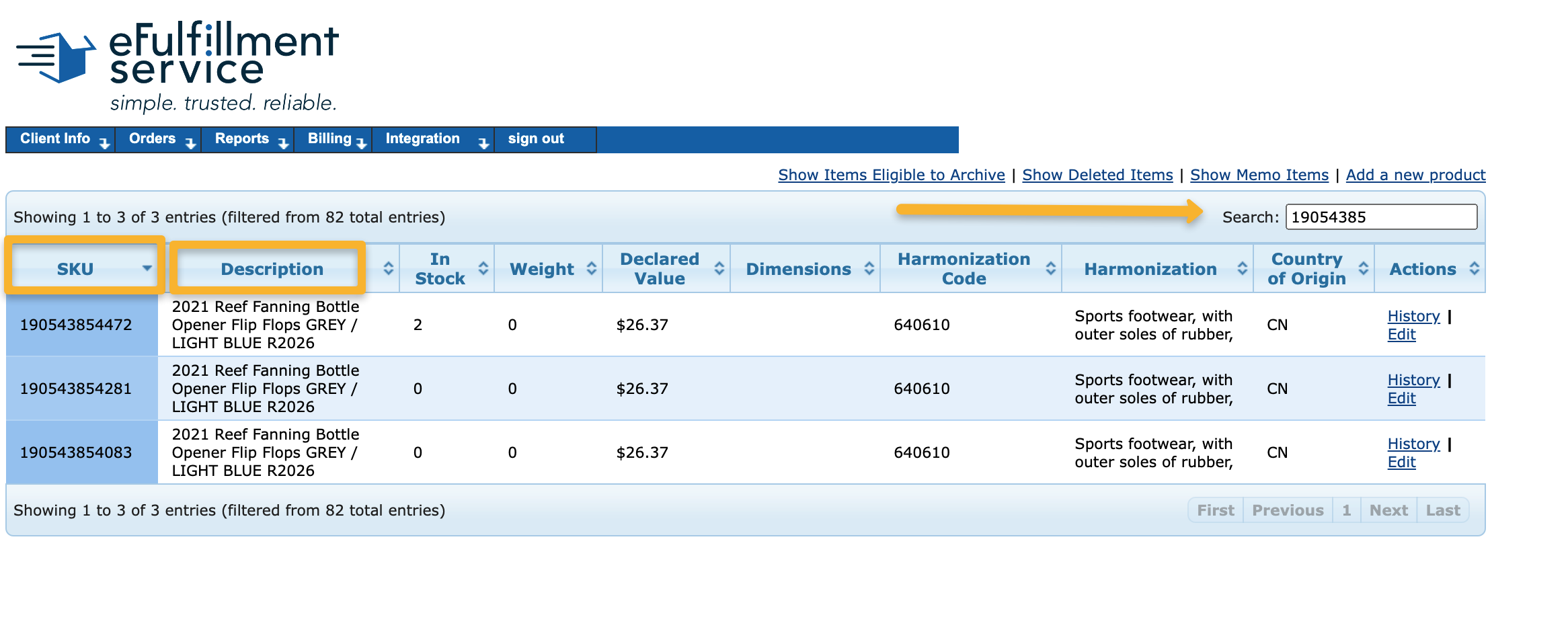
Use Show Deleted Items or Hide Memo Items to refine the view. Click column headers to sort results, and hold Shift to sort by multiple columns.
To view product history or details:
- Click History in the Actions column for transaction logs.
- Click Edit to update product data.
6. Viewing Invoices
To review invoices, go to Billing → View Invoices.
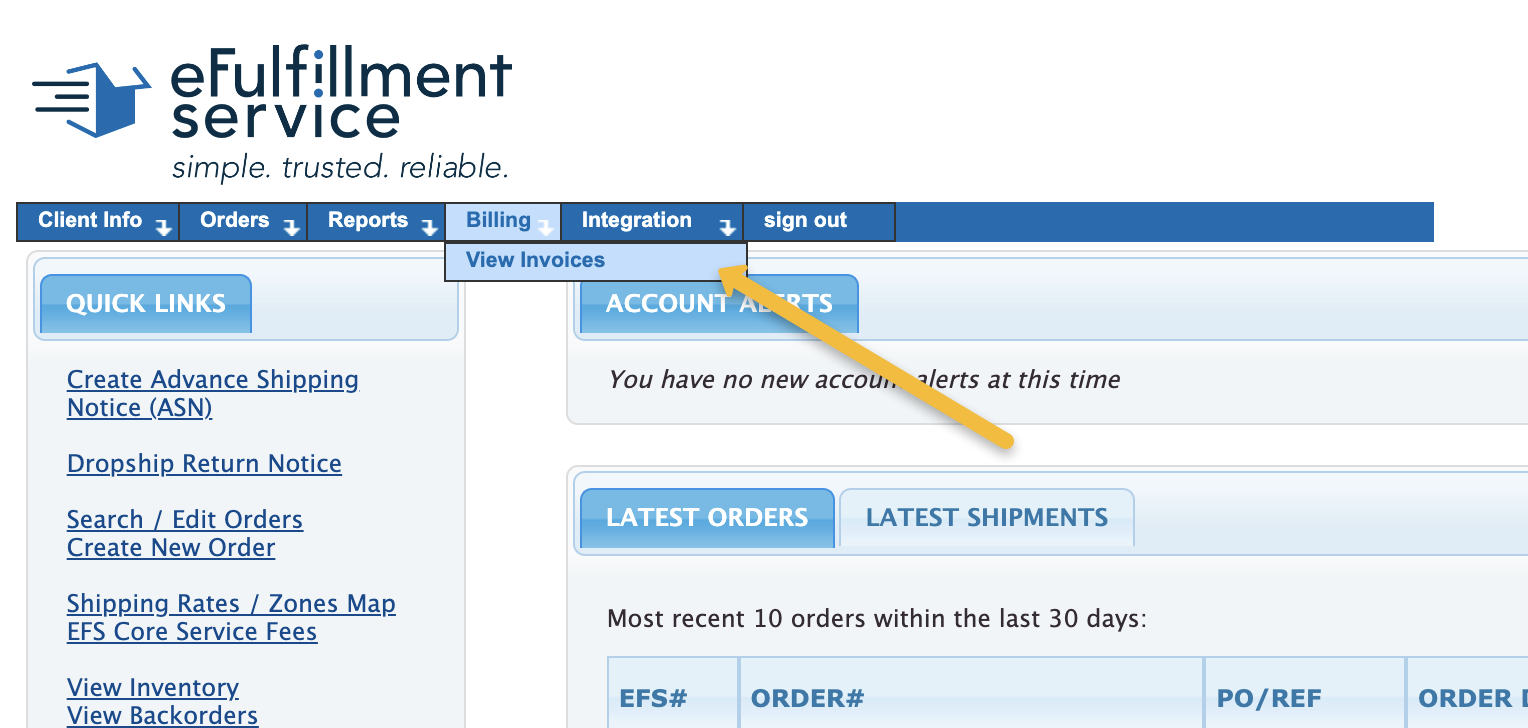
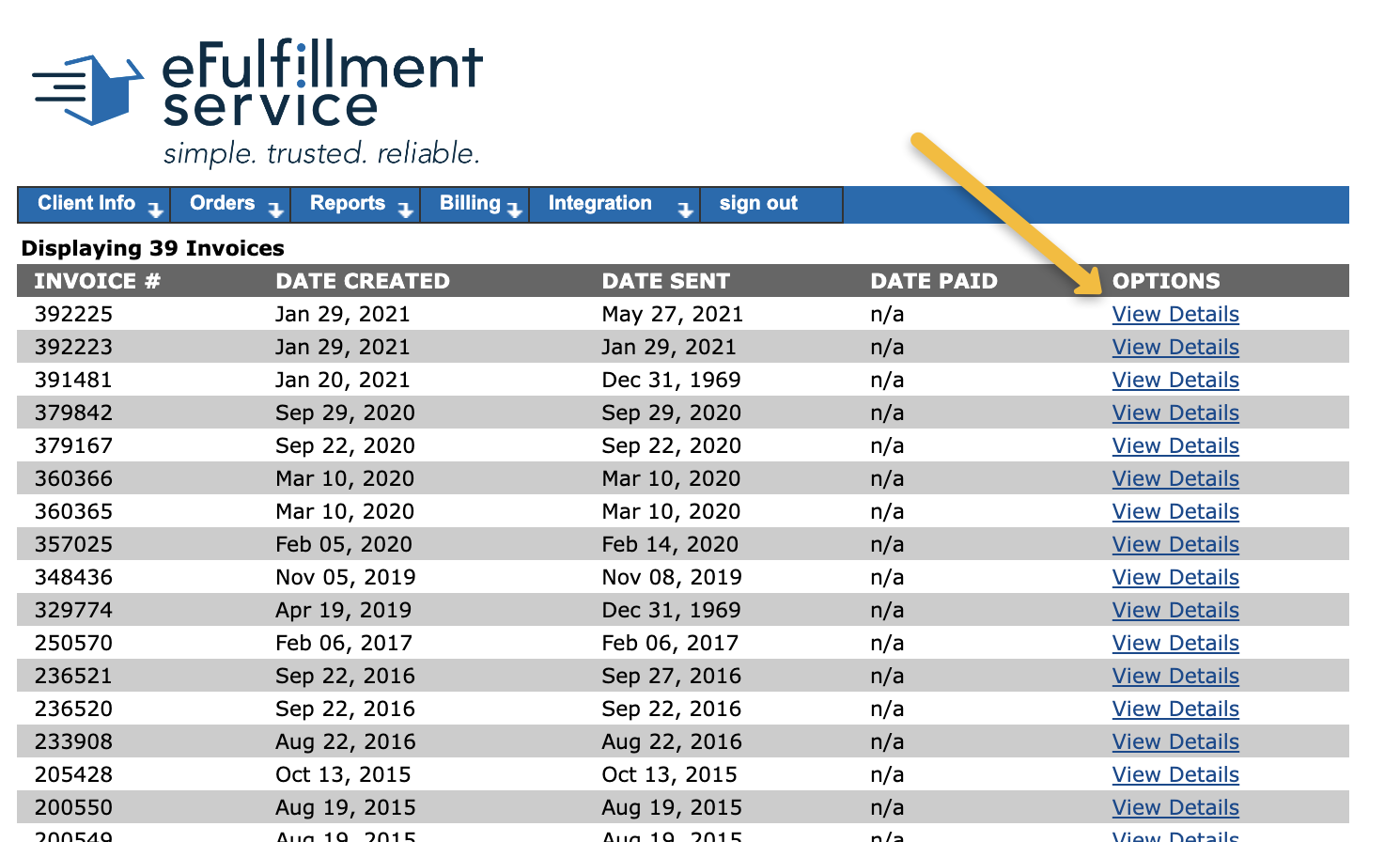
In the billing section, you can:
- Review weekly service invoices and individual shipment records.
- Click View Details to see a breakdown of charges at the shipment level.
- elect Download Detailed Spreadsheet for a full export of your invoice data.
7. Generating Reports
The Reports menu allows you to export operational data for your records or analysis.
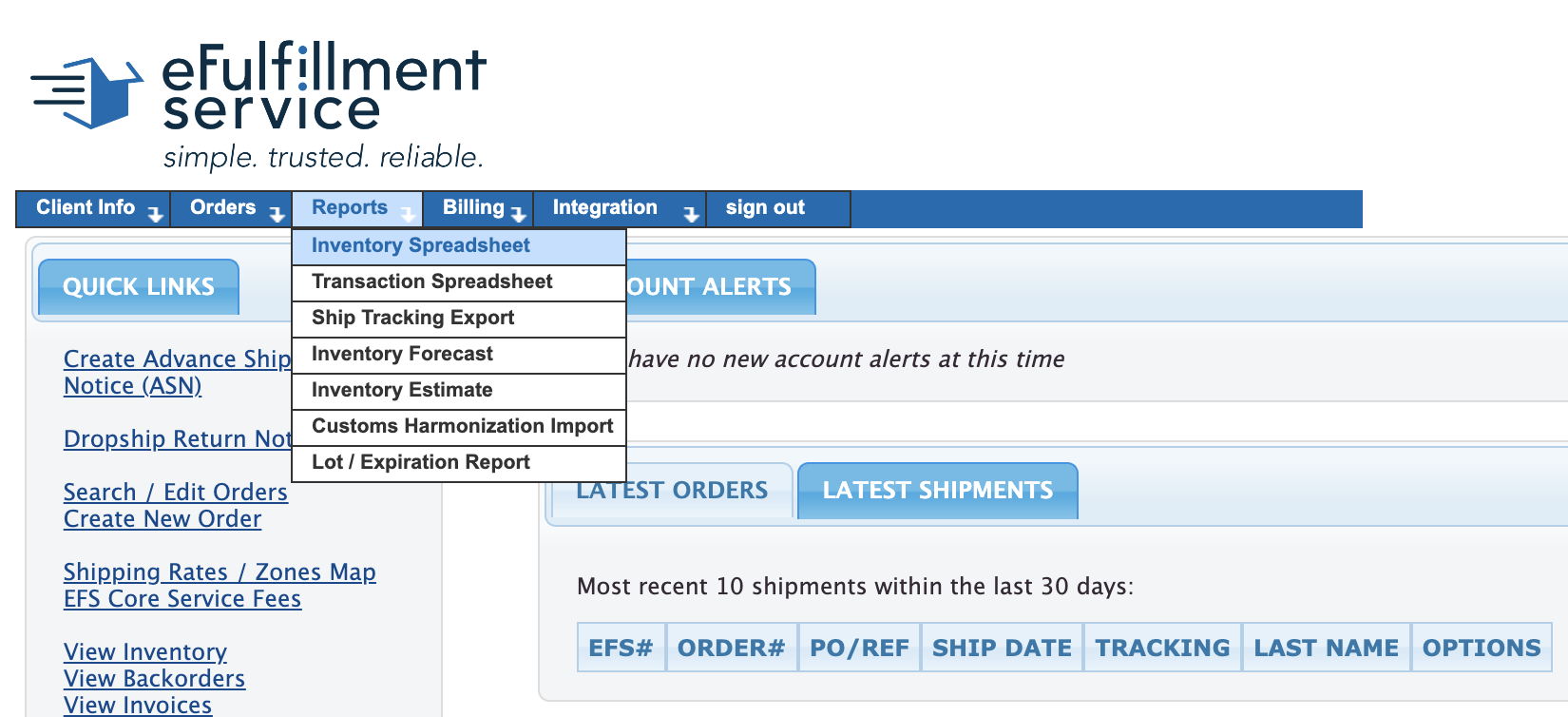
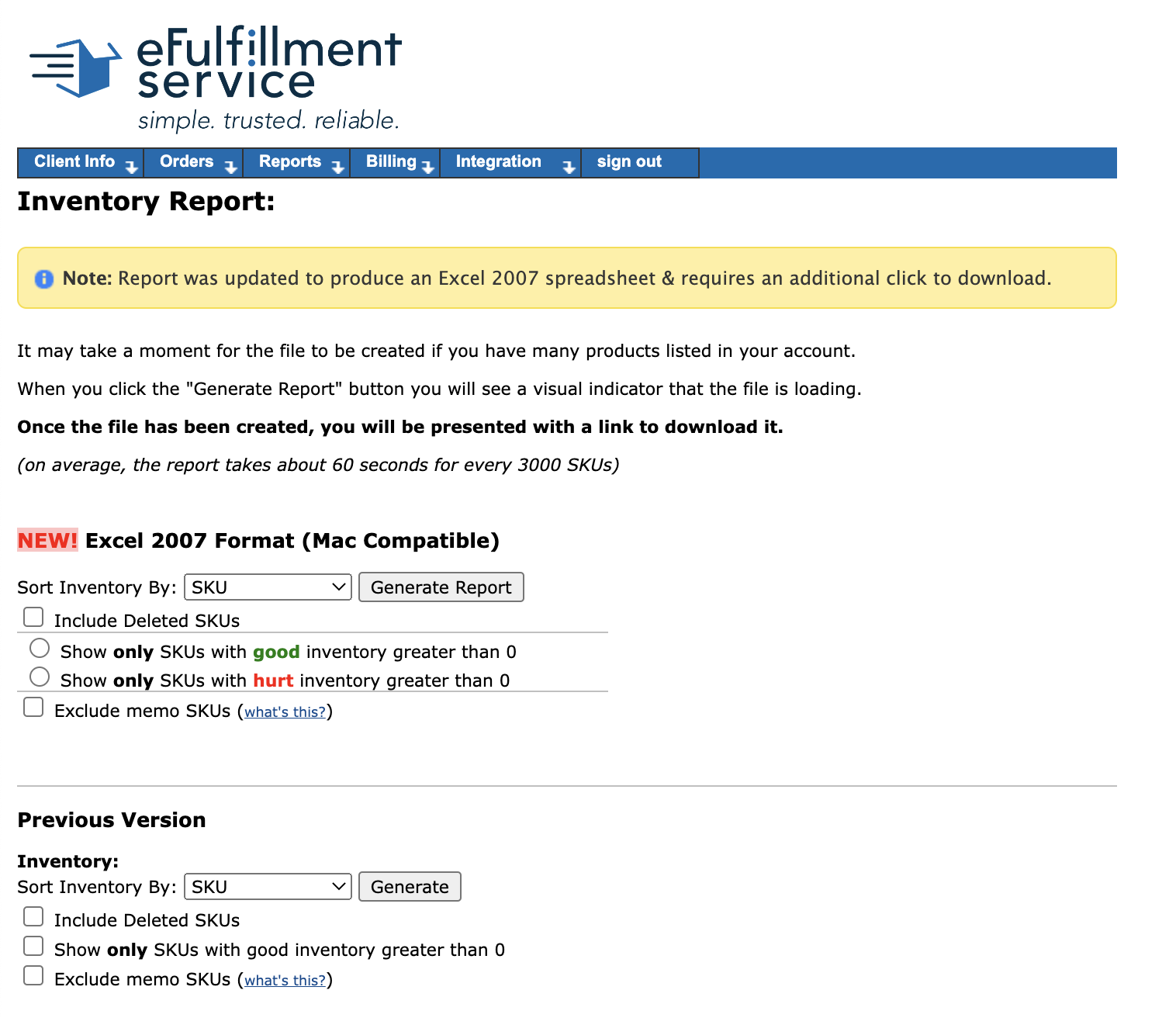
Inventory Report
- Access: Navigate to Reports → Inventory Spreadsheet.
- Sorting: Sort by SKU, Description, or Quantity.
- Details: The generated report includes SKUs, descriptions, bin/pallet locations, and available quantities.
- Performance: Large reports take approximately 60 seconds to generate for every 3,000 SKUs.
Transaction Report:
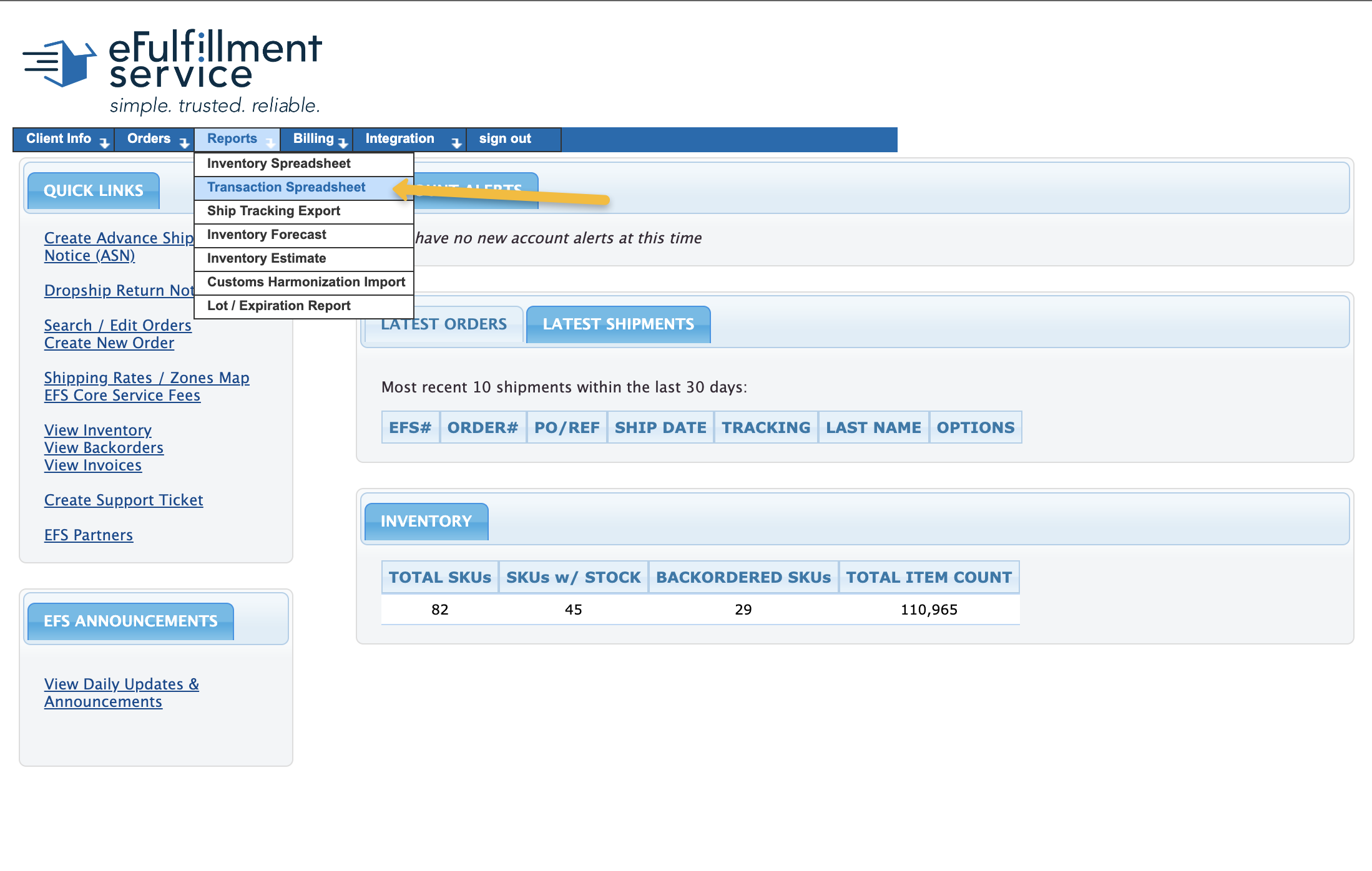
- Access: Navigate to Reports → Transaction Spreadsheet.
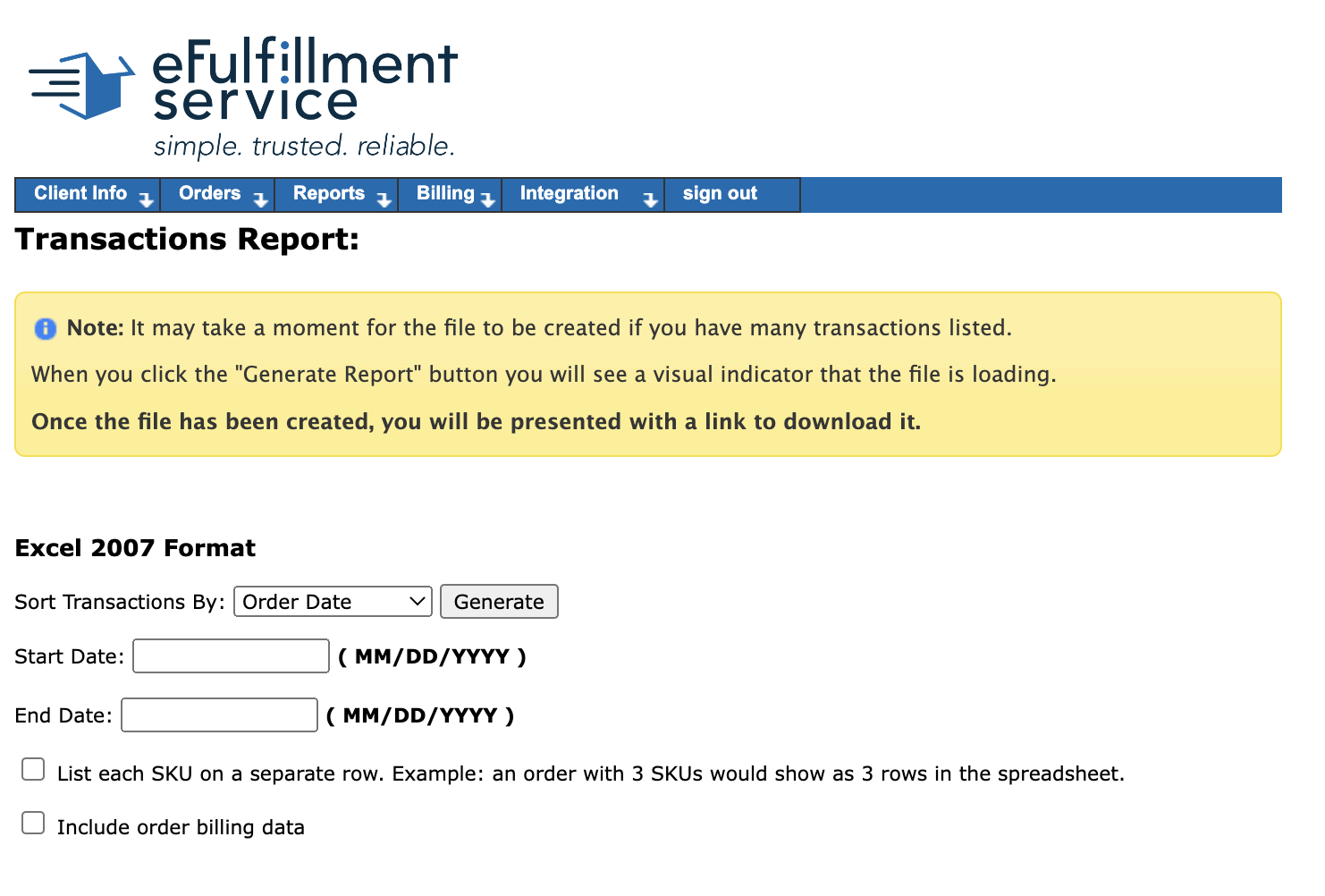
- Sorting: Sort by Order Date, Ship Date, Order Number, or Customer Name.
- Parameters: Select a specific date range and click Generate.
- Details: This report includes shipped orders, customer information, quantities, and tracking numbers.
You can export both reports as spreadsheets for your records or analysis.
Next Steps
Once your FCP settings and products are configured:
- Once your account and support access are ready, proceed to the next guide: “Sending Your First Inventory” This will help you prepare and submit your initial shipment for receiving.