
FBA Prep is Now
Even Easier
Introducing Our New FBA Prep Order Integration
If you've dealt with prepping orders for Amazon FBA, you know the friction: entering data, acquiring labels, adjusting box contents, and constant back-and-forth between your team and your 3PL. We heard your concerns — and we've eliminated them. Our new FBA Prep Order Integration handles the heavy lifting end-to-end, so you can focus on growing your business.
Create Inbound Plan
Once we receive your order, we create the inbound plan to Amazon on your behalf — no action needed from you.
SKU Labeling & Prep
Amazon informs us of any labeling or prep requirements based on your Seller Central account. We handle it, including printing labels directly from Amazon.
Box Contents to Amazon
We create and transmit accurate box contents directly to Amazon — eliminating manual data entry and compliance errors.
Cheapest Shipping, Auto-Selected
We automatically select the most cost-effective shipping option available and print shipping labels straight from Amazon's system.
Hands-Free Processing
The entire workflow executes without constant check-ins or back-and-forth communication — your order moves, you don't have to.
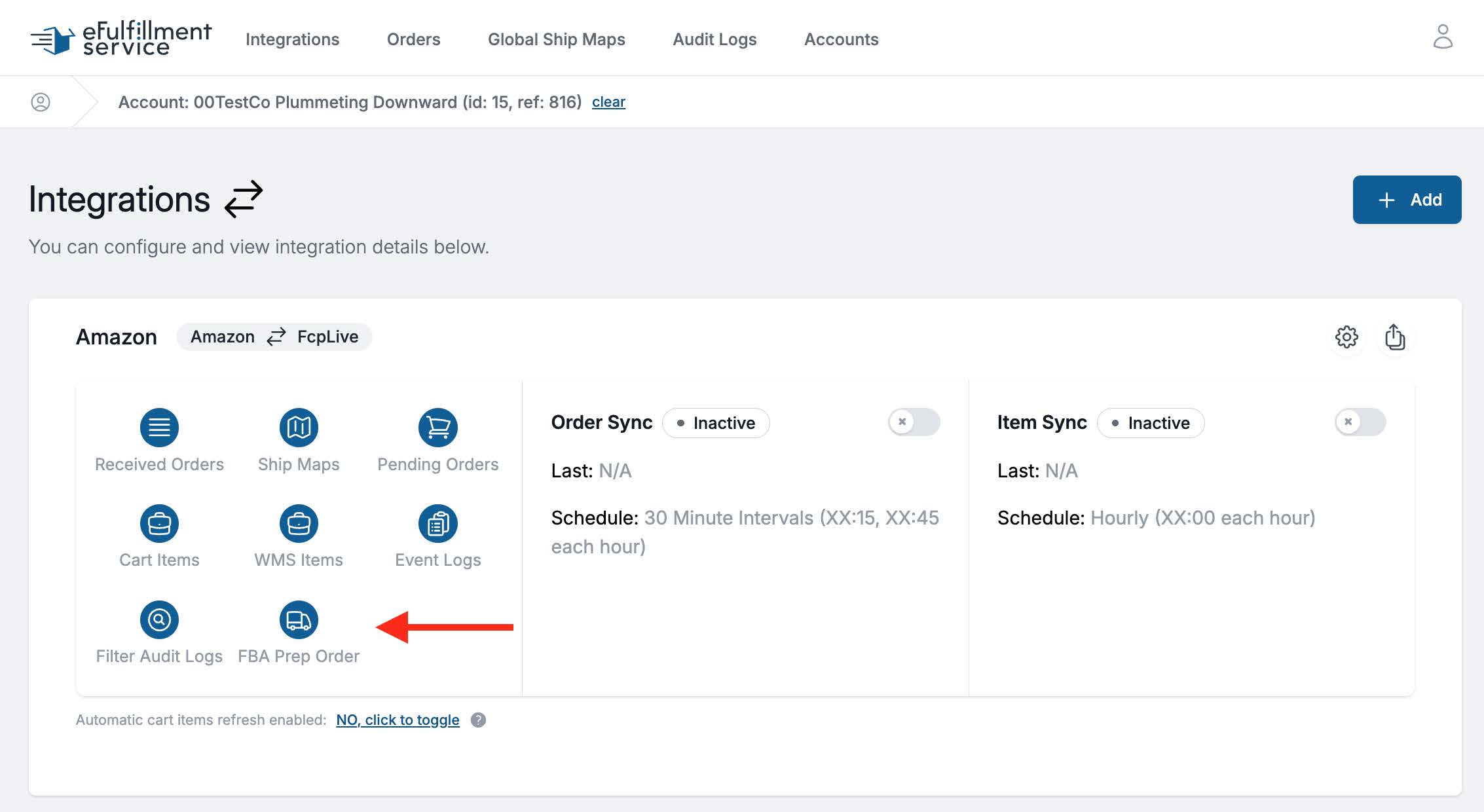
Open the FBA Prep Order section
In your integration portal, navigate to the FBA Prep Order section. You'll see a copy of your Cart Items page — your existing SKU map is already loaded.
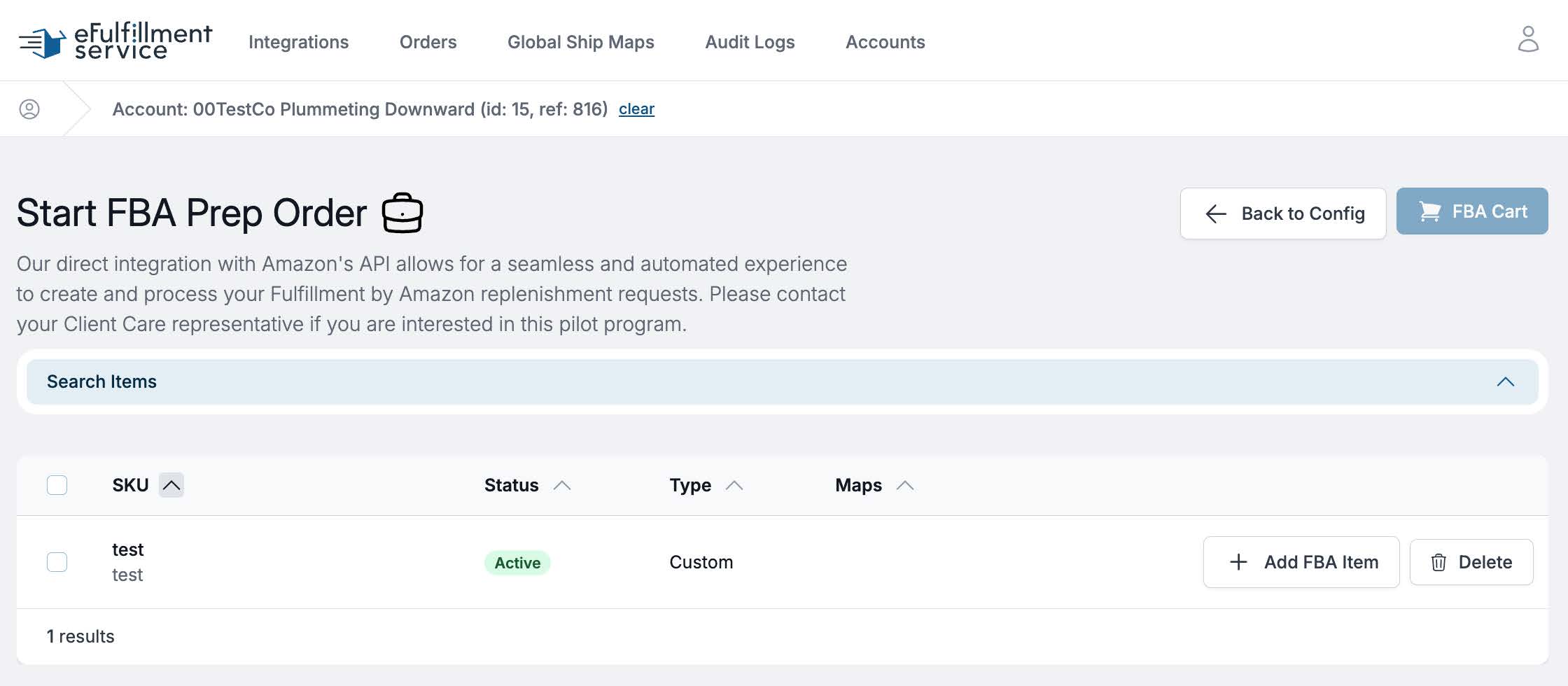
Add Items to Your FBA Cart
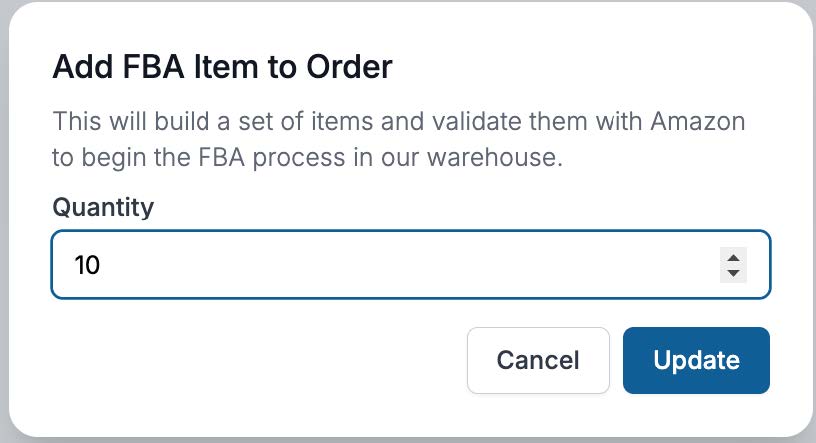
Click +Add FBA Item next to any SKU. Enter the quantity, click Update, and the item is added. The cart button updates in real-time to show total SKUs and units.
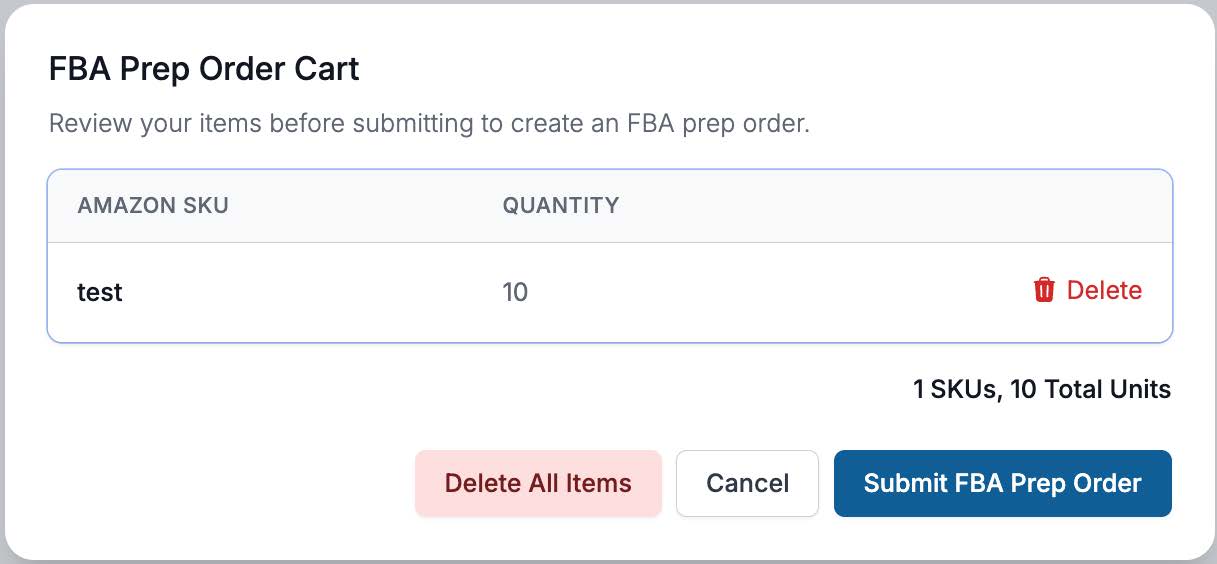
Review & Submit
Click the FBA Cart button to review your full order. Remove any items if needed, then click Submit FBA Prep Order. We handle everything from there.
- Custom Cart Items required: FBA items must be added as Custom Cart Items in your integration. The Item SKU in your Custom Cart Item must exactly match the Amazon SKU. If the Amazon SKU does not match your WMS SKU, you will have to create a SKU mapping. Contact your Client Care Rep if you need help.
- Inventory check: Our system prevents over-ordering — it won't submit orders that exceed available inventory. Confirm stock levels before placing an order.
- Error logs: If a submission fails, details are recorded in your error logs so you can quickly identify and resolve any issues.
Submitting Your Order: A Visual Guide
All order submission happens through your existing EFS integration portal — no new systems to learn.
Find the FBA Prep Order Section
In your integration portal, open the Amazon integration settings. You'll find the FBA Prep Order button alongside your other integration options (Received Orders, Cart Items, Ship Maps, etc.). Click it to open the order page.
Add Items to Your FBA Cart
You'll see your Custom Cart Items listed. Click +Add FBA Item next to any SKU, enter the quantity in the popup, then click Update. The FBA Cart button in the upper right updates live with your running SKU and unit count.
Review Your Order & Submit
Click the FBA Cart button to open the order review popup. Confirm your SKUs and quantities, remove any items if needed, then click Submit FBA Prep Order. EFS handles everything from there.
Frequently Asked Questions
Who is this integration designed for?
Any EFS client currently using FBA Prep services who wants to eliminate manual steps, reduce errors, and speed up the process of getting inventory into Amazon's fulfillment centers.
Do I need to set anything up before using the integration?
Yes — any product you want to include in an FBA order must be added as a Custom Cart Item in your integration portal. If you've already set up a standard Amazon integration with EFS, this process will be familiar. In addition, all SKUs in Amazon Seller Central must have the appropriate weights and dimensions configured. Contact your Client Care Representative if you need help.
What happens after I submit an FBA Prep order?
EFS takes over from there. We create the inbound plan with Amazon, handle any required SKU labeling or prep based on your Seller Central account, compile accurate box contents, select the most cost-effective shipping method, and print all labels — all without you needing to take any additional action.
Does the system select shipping automatically?
Yes. Our integration automatically identifies and selects the cheapest available shipping option for your FBA shipment and prints the labels directly from Amazon.
What if I order more than my available inventory?
Our system is designed to prevent this. If an order would put any SKU into backorder, the system will block the submission and inform you of the inventory shortfall. Always confirm your inventory levels beforehand — especially if multiple Amazon Cart Items are mapped to a single EFS SKU.
What if my order submission fails?
Failed submissions are recorded in your error logs, which include details on which SKUs caused the issue and why. Review the logs to identify the problem, make corrections, and resubmit.
Will I still need to log into Amazon Seller Central?
For this process, no. Our integration reads your existing Seller Central configurations to determine prep requirements — you do not need to enter anything on the Amazon side to place an order.
Who should I contact if I have questions or need help getting started?
Reach out to your dedicated Client Care Representative at eFulfillment Service. They can walk you through setup, answer questions, and make sure your integration is configured correctly.
Ready to Get Started?
Contact your Client Care Representative.